Switch between open Chrome tabs with keyboard shortcuts
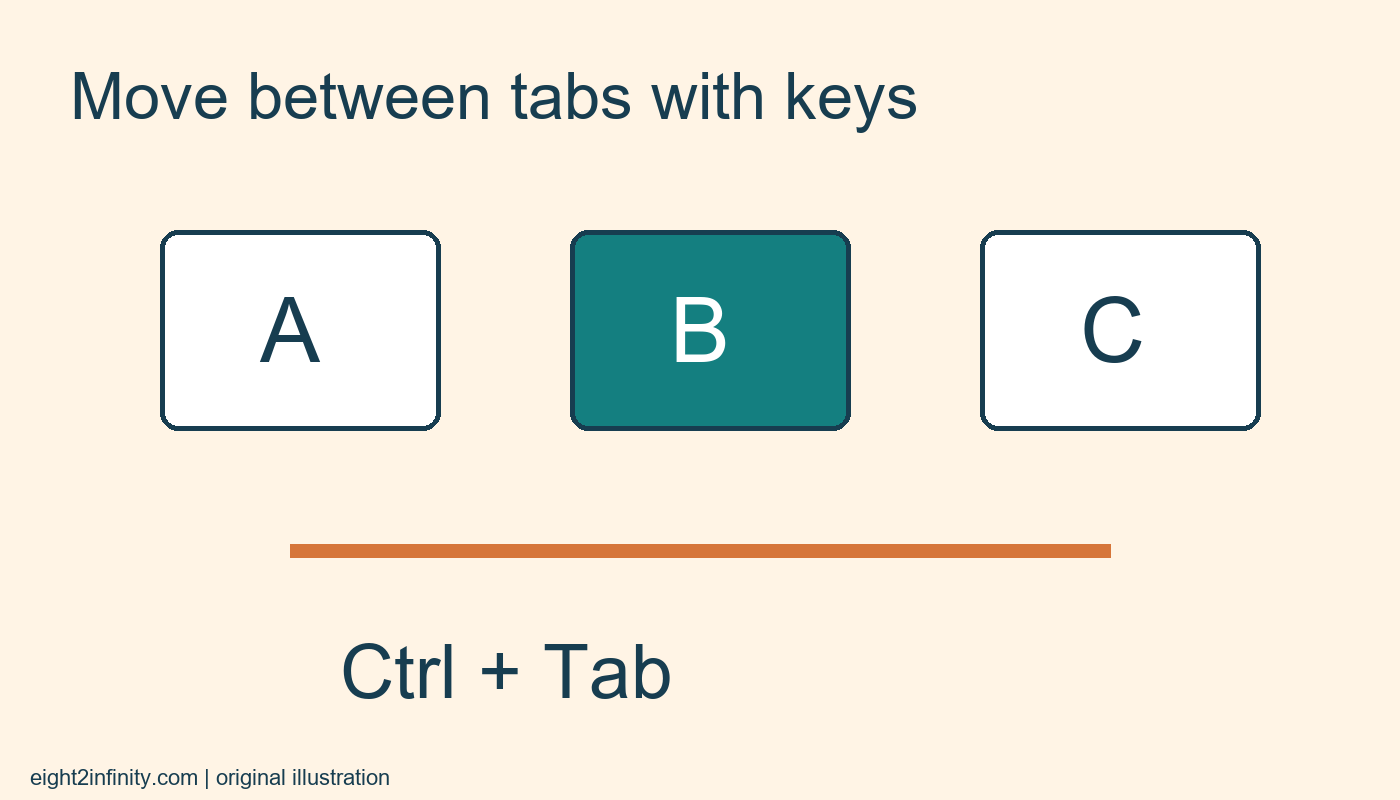
On Windows or Linux desktop Chrome, Ctrl+Tab moves to the next open tab and Ctrl+Shift+Tab moves to the previous one. These shortcuts let you move through a small set of references without repeatedly reaching for the pointer. They navigate the open tabs in the current window; they do not search your history or reopen a tab that has been closed.
The commands come from Google's current Chrome keyboard-shortcut reference. macOS uses different commands for some browser actions, so Mac readers should use the platform section of that reference rather than assuming every Windows combination transfers unchanged. This exercise concentrates on Windows and Linux and uses three ordinary public pages. A keyboard shortcut is a convenience, not evidence that a page or an unsaved form has been stored safely.
Prepare a small practice window
Open three tabs in one Chrome window. Use pages you can distinguish readily, such as a library homepage, a public calendar, and a dictionary. Put them in that order for the exercise and select the first tab. Close unnecessary practice windows if they would confuse the task, but save any real work before doing so. You only need three open pages to learn the sequence.
Write A, B, and C on a piece of paper to represent their positions from left to right. The letters are your practice labels, not browser-generated names. Using a physical note helps separate the idea of position from the webpage title. If tabs move later, the position shortcuts will follow the new order, so the note should describe the current arrangement.
Move forward one tab
Hold Ctrl, press Tab once, and release both keys. The middle tab should become active. Press the combination again to move to the third tab. Read the active page heading after each move so you know which page is visible. Do not judge success only by a small change in the tab strip when the three pages have similar icons or titles.
Press Ctrl+Tab from the last tab to observe how Chrome continues through the open set. For an ordinary three-tab arrangement, navigation cycles back to the first tab. Keep the exercise slow at first; holding a key down can move farther than you intended. A single deliberate press makes the result easier to compare with your prediction.
Move backward deliberately
From the third tab, hold Ctrl and Shift, press Tab once, and release the keys. The middle tab should become active. Repeat to reach the first tab. This is useful when you overshoot a reference by one position. You do not need to move all the way around the sequence if the previous-tab command reaches it directly.
Google also lists Ctrl+PgDn and Ctrl+PgUp as next-tab and previous-tab alternatives on Windows and Linux. A compact laptop keyboard may require an additional hardware function key to access Page Down or Page Up, so use the combination that is practical for your keyboard. Avoid changing several keyboard settings merely to complete this small browsing exercise.
Jump to a known position
For a direct jump, Google documents Ctrl+1 through Ctrl+8 for specific tab positions and Ctrl+9 for the rightmost tab. With three tabs, Ctrl+2 selects the middle position. Ctrl+9 selects the rightmost tab even though it is third rather than ninth. That last distinction is worth learning before you try the shortcut with a larger collection.
Position shortcuts work best with a stable small arrangement. If a new tab is inserted near the left edge, the position of later tabs changes. Do not treat Ctrl+2 as a permanent bookmark for a particular website. It means the tab currently occupying the second position in that window. Confirm the page before entering information or following a task instruction there.
Distinguish navigation from closing
Ctrl+W closes the current tab, which is a different action from Ctrl+Tab. Keep your fingers deliberate while learning. If a page contains an unfinished form, save or complete it through the appropriate service before experimenting with unrelated shortcuts. Reopening a closed page does not guarantee recovery of every unsaved field, so prevention is better than relying on restoration.
These commands also differ from Alt+Tab on Windows, which switches application windows. If the entire browser disappears behind another application, you may have used the operating-system switcher instead. Return to the intended Chrome window and try again. Naming a window can help distinguish contexts, but the keyboard sequence still operates within the currently active window.
Troubleshoot unexpected behavior
If the shortcut does nothing, confirm that Chrome has focus rather than a remote desktop, a virtual machine, or another application. Some managed environments and accessibility setups may handle keys differently. Test with ordinary public pages before blaming a particular site. Avoid installing an extension just to solve a basic navigation question when the documented command already meets the need.
For an exercise, begin at A and predict the result of next, next, previous, then Ctrl+1. You should finish at A after visiting B, C, and B. Now reorder the middle and last tabs and explain why Ctrl+2 reaches a different page. This checks that you understand both movement and position, which is more useful than memorizing a shortcut without knowing what it selects.