• About
  • Contact
  • Privacy Policy
  • Terms
  • Editorial Policy
  • Affiliate Disclosure
No Result
View All Result
  • Login
Eight to Infinity
  • Home
  • Parenting
    • Child Safety
    • Family Wellness
    • Kids Activities
    • School & Learning
  • Practical Living
    • Cleaning
    • Home Décor
    • Home Improvement
    • Organization
    • Pest Control
  • Pet Care
    • Bird Care
    • Budgie Care
    • Beginner Pet Guides
  • Technology
    • AI Tools
    • Apps
    • Online Safety
    • How-To Tech
  • Money & Work
    • Career
    • Entrepreneurship
    • Financial Planning
    • Investment Advice
    • Making Money Online
  • Food
    • Cooking Tips
    • Recipes
  • Health
    • Healthy Eating
    • Mental Health
    • Wellness
  • Education
    • Career Education
    • Student Guides
    • Study Abroad
  • Travel
    • Destinations
  • Science
    • Facts
  • Lifestyle
    • Beauty
    • Fashion
      • Footwear
    • All Post
  • Home
  • Parenting
    • Child Safety
    • Family Wellness
    • Kids Activities
    • School & Learning
  • Practical Living
    • Cleaning
    • Home Décor
    • Home Improvement
    • Organization
    • Pest Control
  • Pet Care
    • Bird Care
    • Budgie Care
    • Beginner Pet Guides
  • Technology
    • AI Tools
    • Apps
    • Online Safety
    • How-To Tech
  • Money & Work
    • Career
    • Entrepreneurship
    • Financial Planning
    • Investment Advice
    • Making Money Online
  • Food
    • Cooking Tips
    • Recipes
  • Health
    • Healthy Eating
    • Mental Health
    • Wellness
  • Education
    • Career Education
    • Student Guides
    • Study Abroad
  • Travel
    • Destinations
  • Science
    • Facts
  • Lifestyle
    • Beauty
    • Fashion
      • Footwear
    • All Post
No Result
View All Result
Eight to Infinity
No Result
View All Result
Home Technology
Name separate Chrome windows for different tasks

Name separate Chrome windows for different tasks

by Nahida Azmin Nishu
November 22, 2026
in Technology
0
ADVERTISEMENT
3
SHARES
20
VIEWS
Share on FacebookShare on Twitter

Name separate Chrome windows for different tasks

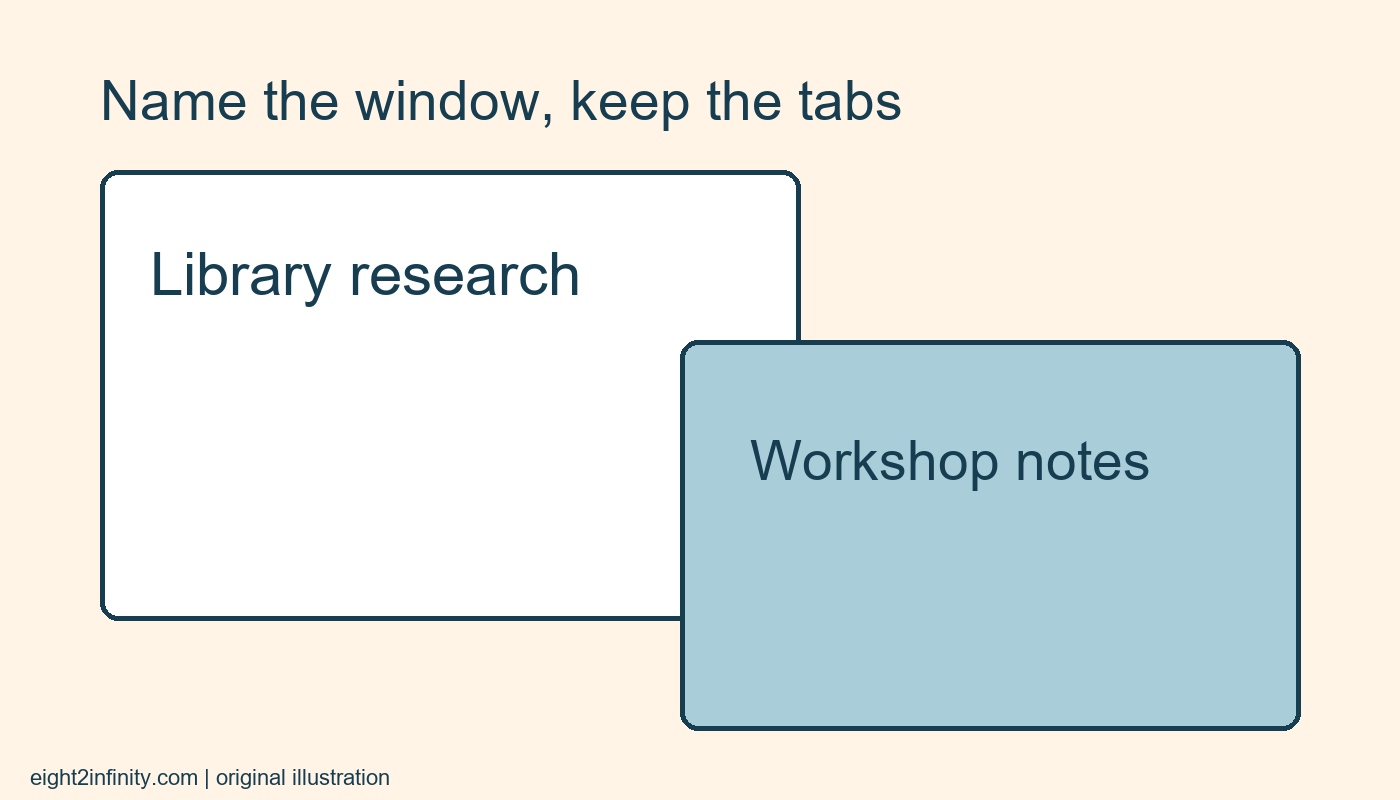
You can give a desktop Chrome window a task name by opening its window-naming command and entering a short description. For example, name one window Library research and another Workshop notes. This helps distinguish windows when switching between them without changing the titles of individual webpages. It is useful when several windows contain similar-looking tabs and the task context matters more than the currently selected page.

Google documents Name window in desktop Chrome's tab-management guidance. Menu placement and operating-system window previews can vary by version and platform. This guide uses ordinary desktop windows and a small practice set. It makes no promise that a window name is a permanent archive, a bookmark collection, or a backup of unsaved work. Save important information through the appropriate page or application first.

ADVERTISEMENT

Make two task windows

Open a normal Chrome window containing a couple of public reference pages. Open a second normal window for a different task. Choose harmless pages for the exercise, such as a library information page and a workshop reference. Keep the number of tabs small so it is obvious which window belongs to which task. You do not need to sign in or change synchronization settings to understand the naming concept.

Do not mix a private task into a window you intend to present on a shared screen. Naming is an identification aid; it does not hide tab titles, page contents, downloads, or account information. A label such as Personal does not protect the window from someone who can see your display. Choose a practice setup that is comfortable to show if you are learning alongside another person.

Open the naming command

In the first window, right-click an empty area next to the New Tab button at the top and look for Name window. Google also describes opening the main menu, then More tools, then Name window. Use whichever documented route is available in your desktop version. Make sure you are working in the intended window before confirming a new name.

Enter Library research and confirm the dialog. Switch to the second window and name it Workshop notes. Keep names short and descriptive. A long sentence can be truncated in a preview, and several windows all called Work do not help distinguish tasks. The name should describe the collection of tabs rather than repeat the title of whichever page happens to be active now.

ADVERTISEMENT

Check where the names appear

Google explains that window names can appear when pointing to a minimized window, when using Alt+Tab, and in the tab command for moving a tab to another window. The exact presentation depends on the operating system. Minimize a practice window or use your normal window switcher and inspect the available labels. Confirm which name points to which set of pages.

If you do not see the name where you expected, try the documented window-switching surfaces instead of assuming that a large permanent label must appear inside the webpage. The feature identifies the browser window rather than editing the website. A page heading, tab title, or address remains controlled by its own source and is not renamed by this operation.

Choose names that survive a task change

Use a purpose such as Reading list rather than a temporary status such as The window I just opened. If the task changes, update the name through the same command. A stale name can be worse than no name when it sends you to the wrong context. During a longer session, take a moment to check that each named window still contains the pages implied by its label.

Avoid sensitive details in the name. A general label such as Household planning is usually sufficient for recognition. The name may appear in a window switcher or screen capture, so including a private address or account number adds exposure without helping the browser function. Task names should distinguish work areas with the smallest useful amount of information.

Keep naming separate from saving

If a page contains an unfinished form or document, use that service's save controls. A window name does not save edits within a webpage. For a reference you want later, use an appropriate bookmark or a saved note. The naming feature is most helpful for navigating the current arrangement; it should not become the only record of an important research session.

Likewise, do not close a window merely to test whether its name returns unless all work inside is safely saved. Session-restoration behavior can depend on settings and circumstances. For this exercise, test recognition while the two windows remain open. That checks the useful behavior without making unsupported promises about persistence after browser exit, a crash, or a device change.

Troubleshoot confusing windows

When two previews still look identical, inspect the active pages and make the names more specific. Library opening hours and Library catalog may distinguish two research tasks better than Library one and Library two. If the naming option is missing, confirm you are using desktop Chrome and consult the current help for your version. Mobile Chrome and managed work environments can behave differently.

For practice, switch to Workshop notes without reading every individual tab title. Then rename it Workshop setup and repeat the switch. Explain which part changed and which webpage titles remained the same. If the exercise works, name only the windows that need distinction. A few meaningful task names are easier to maintain than a complicated labeling scheme with no connection to how you actually browse.

Sources and related reading

Primary reference and scope

Rename and group a few Chrome bookmarks

Tags: name separate chrome windows for different taskstechnology
Previous Post

Match removable cushion covers with a simple size record

Next Post

Switch between open Chrome tabs with keyboard shortcuts

Nahida Azmin Nishu

Nahida Azmin Nishu

Related Posts

Identify a frozen Chrome page before ending its process
Technology

Identify a frozen Chrome page before ending its process

November 22, 2026
Enter and leave full screen mode in desktop Chrome
Technology

Enter and leave full screen mode in desktop Chrome

November 22, 2026
Switch between open Chrome tabs with keyboard shortcuts
Technology

Switch between open Chrome tabs with keyboard shortcuts

November 22, 2026
Create and check a Chrome link to highlighted text
Technology

Create and check a Chrome link to highlighted text

November 22, 2026
Next Post
Switch between open Chrome tabs with keyboard shortcuts

Switch between open Chrome tabs with keyboard shortcuts

No Result
View All Result
ADVERTISEMENT

Categories

  • All Post (4)
  • Business and Finance (61)
  • Education (94)
  • Facts (28)
  • Food and Drink (94)
    • Cooking Tips (27)
  • Health and Fitness (85)
    • Mental Health (13)
  • Lifestyle (106)
  • Parenting (51)
  • Pet Care (53)
  • Practical Living (104)
    • Organization (26)
  • Science (15)
  • Technology (102)
  • Travel (78)
    • Destinations (10)

Recent.

Chop a chocolate bar into deliberate pieces for baking

Chop a chocolate bar into deliberate pieces for baking

November 22, 2026
Crack recipe eggs one at a time into a separate bowl

Crack recipe eggs one at a time into a separate bowl

November 22, 2026
Convert a fraction to a decimal by dividing the numerator

Convert a fraction to a decimal by dividing the numerator

November 22, 2026
ADVERTISEMENT
Facebook Youtube Instagram

Eight to Infinity is a online magazine website where you can find something that you might interested to know or find something new to know.

Category

  • All Post (4)
  • Business and Finance (61)
  • Cooking Tips (27)
  • Destinations (10)
  • Education (94)
  • Facts (28)
  • Food and Drink (68)
  • Health and Fitness (72)
  • Lifestyle (106)
  • Mental Health (13)
  • Organization (26)
  • Parenting (51)
  • Pet Care (53)
  • Practical Living (78)
  • Science (15)
  • Technology (102)
  • Travel (78)

Tags

and Australia awareness bedtime routine toddlers benefits Bird Care climate change college students Cooking Tips dos Education exploring fashion future Galah Cockatoo German culture hair care health Healthy Lifestyle higher education home remedies how how to get rid of fruit flies impact Instant Noodles intersection mental health education mental illness natural remedies Nutrition Organization parakeet care Parenting Tips Pet Birds Practical Living Rome screen time rules for kids stigma street technology the travel wildlife Windows 11 world

© 2024 Eight to Infinity - Developed by ZaeimTech.

Welcome Back!

Login to your account below

Forgotten Password?

Retrieve your password

Please enter your username or email address to reset your password.

Log In
Ads Blocker Image Powered by Code Help Pro

Ads Blocker Detected!!!

We have detected that you are using extensions to block ads. Please support us by disabling these ads blocker.

Refresh
No Result
View All Result
  • Home
  • Parenting
    • Child Safety
    • Family Wellness
    • Kids Activities
    • School & Learning
  • Practical Living
    • Cleaning
    • Home Décor
    • Home Improvement
    • Organization
    • Pest Control
  • Pet Care
    • Bird Care
    • Budgie Care
    • Beginner Pet Guides
  • Technology
    • AI Tools
    • Apps
    • Online Safety
    • How-To Tech
  • Money & Work
    • Career
    • Entrepreneurship
    • Financial Planning
    • Investment Advice
    • Making Money Online
  • Food
    • Cooking Tips
    • Recipes
  • Health
    • Healthy Eating
    • Mental Health
    • Wellness
  • Education
    • Career Education
    • Student Guides
    • Study Abroad
  • Travel
    • Destinations
  • Science
    • Facts
  • Lifestyle
    • Beauty
    • Fashion
      • Footwear
    • All Post

© 2024 Eight to Infinity - Developed by ZaeimTech.

This website uses cookies. By continuing to use this website you are giving consent to cookies being used. Visit our Privacy and Cookie Policy.