Identify a frozen Chrome page before ending its process
Chrome's built-in Task Manager can help you select an unresponsive page and end its process, but first identify the page and consider any unsaved work. Google documents the command under the Chrome menu, More tools, then Task manager. Use it as a targeted recovery action when a page will not respond normally. Ending a process can discard work, so it is not a routine way to tidy an ordinary tab list.
This article explains a cautious decision sequence rather than asking you to deliberately freeze a website. You can open Task Manager to learn its layout and close the manager without ending anything. If an actual page becomes unresponsive later, you will have a better basis for deciding what to select. The task is different from closing an ordinary responsive tab or changing browser performance settings.
Confirm what is actually stuck
Start by asking whether only one page is affected. Can you switch to another tab and interact with a harmless reference page? If the rest of Chrome responds, note the exact title of the problem tab. If the entire application or computer is unresponsive, the built-in manager may not be accessible, and this narrow procedure may not apply. Avoid promising that one browser command solves every kind of freeze.
Give a page that is legitimately loading or processing a moment to respond before forcing it closed. A spinning indicator alone is not proof of a failure. If the page contains a long-running task you intentionally started, consult the service's own guidance. Ending its process may stop the visible page without telling you whether an action on the remote service already completed.
Consider unsaved work first
Think about drafts, form entries, or edits in the affected page. If the page still responds enough to save or copy important text through its normal controls, do that first. Do not assume that a site has autosaved simply because another site usually does. Browser recovery, website drafts, and remote submissions are separate behaviors that vary by service.
For example, a frozen event-registration form may contain an address you typed but never submitted. Ending the page could remove that local entry. Conversely, if you clicked a submit button just before the freeze, the server may already have received the request. Before submitting again after recovery, check the site's confirmation or account record through its normal process to avoid creating an unintended duplicate.
Open the browser task list
When Chrome's menu is responsive, open the menu at the top right, choose More tools, and select Task manager. Google's current tab-management documentation describes this path. Interface placement can change, so use the official help page if a managed or updated installation looks different. This is Chrome's own task list, distinct from the operating system's general process manager.
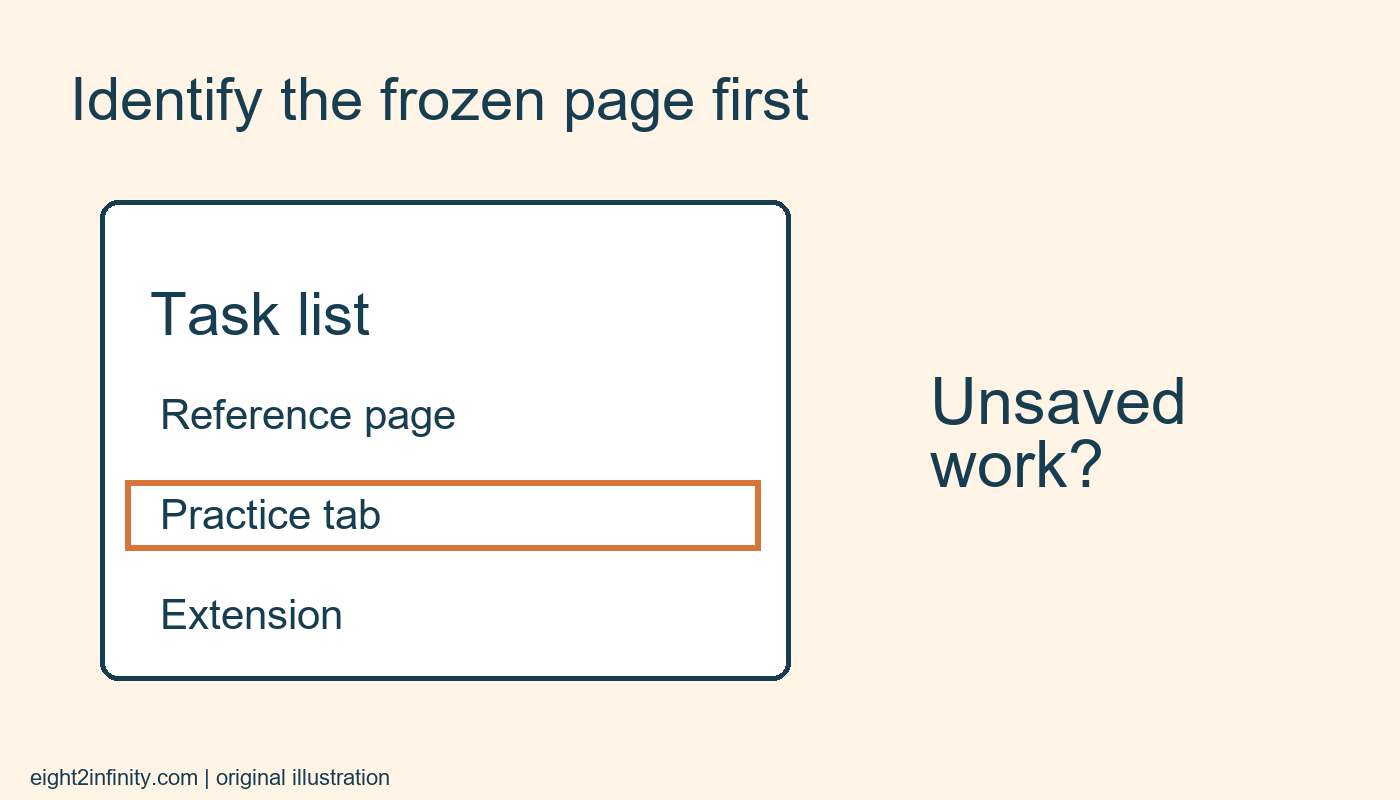
Read the entries before selecting one. The list can contain pages, extensions, and other browser work, so it is not a simple duplicate of the visible tabs. Match the problem page's title as carefully as possible. If several entries look similar and you cannot identify the intended one, stop rather than selecting an arbitrary row based on its position or a large-looking number.
Treat resource numbers as clues
A page using more memory than its neighbors is not automatically broken. Different tasks require different resources, and the values change over time. This procedure does not set a universal threshold for a bad tab. Use your observation that a particular page is unresponsive together with its identity, rather than treating the largest value in the manager as a command to terminate it.
Similarly, an extension entry is not interchangeable with a page entry. Ending or disabling an extension can affect several pages and may introduce another issue. If you suspect an extension, follow an appropriate extension-troubleshooting process separately. For the narrow frozen-page task, keep the decision focused on the page you have identified and on the work you are prepared to lose.
End only the intended process
If you have identified the unresponsive page and accepted the possible loss of unsaved work, select its entry and choose End process. This is the consequential step. Do not use it during the harmless layout exercise. Afterward, inspect the affected tab and follow its recovery or reload controls as appropriate. Avoid repeatedly terminating entries just because the first action did not restore everything immediately.
Before re-entering data, check whether the service saved a draft or completed the earlier action. Use its ordinary account history, confirmation page, or documented recovery instructions. A browser process ending does not reverse a purchase, upload, message, or other server-side action that already happened. This distinction is especially useful when the freeze occurred just after you pressed a submit button.
Practice without terminating anything
Open two ordinary reference tabs with recognizable titles, then open Chrome's Task Manager. Find the titles, observe that other kinds of entries may appear, and close the manager normally. This gives you familiarity without creating a fake failure or risking real work. Write down the menu path if you support someone who may need help finding it later.
Google's cited guidance applies to desktop Chrome; operating-system tools and mobile behavior differ. This article does not claim to diagnose a specific freeze or to have tested your computer. Your reader exercise is to explain the decision before End process: which page is affected, what might be unsaved, and how will you check whether the original website action already completed after the page recovers?