Create and check a Chrome link to highlighted text
In desktop Chrome, select a short passage on a webpage, right-click the selection, and choose Copy link to highlight when available. Paste the result into a private practice note and open it to check that it reaches the intended passage. The feature can help another reader find a specific point, but it does not guarantee that every browser or webpage will display the highlight. Include the page title and a brief explanation so the link remains useful when highlighting is unavailable.
Pick a passage with enough context
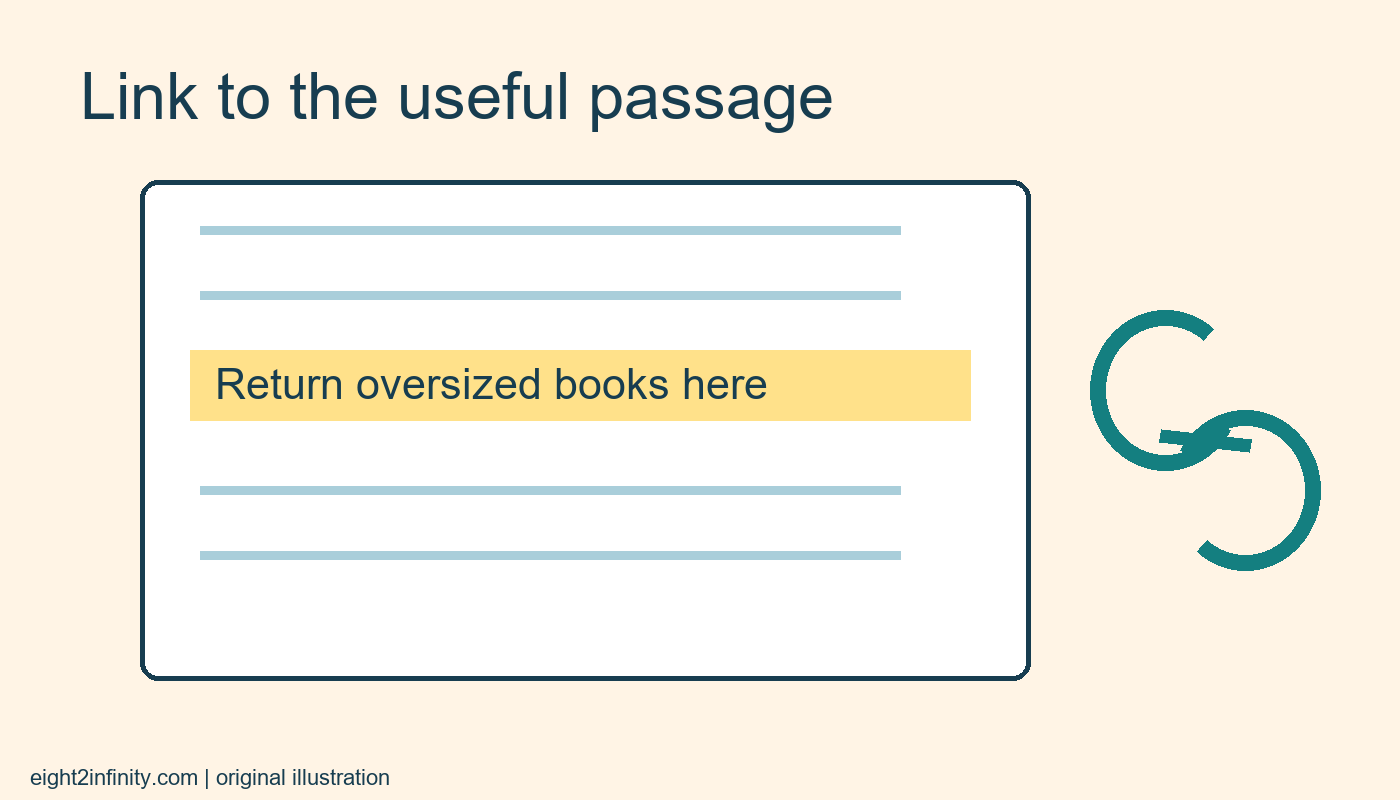
Choose a public information page and identify one concise paragraph that answers a real question. For a practice example, imagine a library page explaining where to return oversized books. Select the complete instruction rather than a few words that lose meaning outside the surrounding sentence. Avoid selecting personal information from an account page or a passage that requires another person's private login. A link cannot responsibly stand in for checking whether its destination is appropriate to share.
Read the sentences immediately before and after the selection. A phrase such as except during renovation can change the instruction substantially. If the relevant qualifier falls outside the highlight, include it in your explanation or choose a fuller passage. The original webpage remains the authority. Highlighting a fragment is a navigation convenience, not permission to detach a statement from its limitations or present an old instruction as current simply because the link still opens.
Copy the highlighted passage link
On your computer, open Chrome and drag over the text you want to select. Right-click the selected text and choose Copy link to highlight. Google documents this command and notes that it may not work for every selected content area. If it is unavailable, use the ordinary page address and a clear section heading instead. Do not repeatedly broaden the selection until the feature appears if that makes the highlighted material irrelevant or confusing.
Paste the copied link into a note you control. Add the page title and a short purpose statement, such as Oversized book return location. Keep the note private during this exercise; no message needs to be sent. The link may be longer than the page's ordinary address because it includes information about the selected text. Preserve the complete copied result while testing. Trimming the tail because it looks untidy can remove the part responsible for locating the passage.
Verify the destination before relying on it
Open the saved link in a new tab. Check the website address, page title, and highlighted words. Confirm that it reaches the intended version of the page and that the text still says what your note claims. If the passage occurs more than once, examine the surrounding heading. A visual highlight can be accurate at the word level while still drawing attention to the wrong repeated section. The final check should be about meaning as well as appearance.
For the library example, make sure you did not link to a past temporary closure notice when you meant the current return instructions. Look for a date or an update note where the page provides one. If the website has changed the wording, create a new link from the current passage or use a normal link with a written location cue. Highlight links depend on the content being locatable; they should not be treated as permanent citations to an unchanging document.
Write a useful fallback description
A note such as See the Returning large items heading on the library's page is helpful even if a browser opens the page without a highlight. Keep that description short and accurate. Do not paste a whole copyrighted article into the message as insurance against a link problem. A brief original summary and the source address generally communicate the purpose more clearly. For exact wording that matters, quote only what is appropriate and retain the surrounding qualification in your explanation.
The feature does not grant access to restricted pages or save an offline copy. A recipient may see a login prompt, a changed page, or no visible highlight. Different browsers and website structures can affect the result. Test in the environment you intend to use when practical, and avoid promising universal behavior. If the person needs a form, map, or interactive result, a text-fragment link may be the wrong tool. Use the site's own sharing function when it better represents that content.
Resolve common failures calmly
If opening the link goes to the page but not the text, compare the saved selection with the current wording. Check whether the page loads the passage only after another action. Try a short ordinary paragraph on another public page to distinguish a site-specific limitation from a general problem. Google's documented fallback is that the feature may not support the selected content; there is no need to change unrelated security settings to force it.
For a reader exercise, create one highlight link and one ordinary page link to the same public article. Write a two-sentence note that would help someone use either version. Open both yourself and compare how quickly you locate the passage. Which short heading or keyword would help if the highlight failed? Keep that cue with the link. The strongest result is a checked reference with clear context, rather than a long address whose purpose only its creator remembers.