Enter and leave full screen mode in desktop Chrome
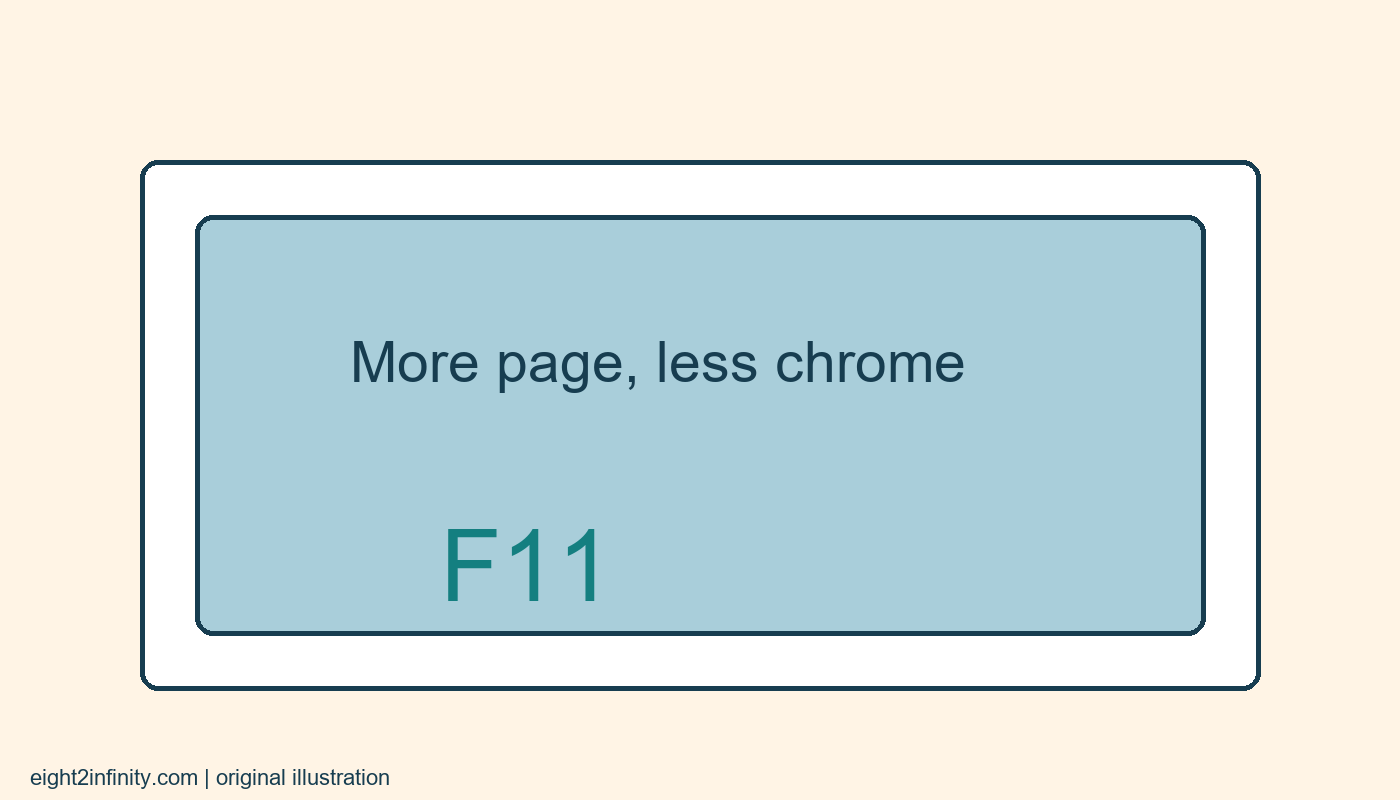
In desktop Chrome on Windows or Linux, press F11 to enter browser full-screen mode and press F11 again to leave it. On a Mac, Google's documented shortcut is Control, Command, and F. Full screen gives the page more space by hiding browser surroundings; it does not change the website's content or make a page private. Learn the exit action before using it during a presentation or a long reading session.
This exercise uses a harmless reference page with no unsaved form. You will compare an ordinary window with full screen, then return to the starting view. The aim is to make the missing tabs and address bar understandable rather than alarming. A browser can look very different while the same page remains open, and knowing which display mode you entered can prevent unnecessary restarts.
Prepare a simple comparison
Open Chrome and navigate to a public reference page you recognize, such as the Google help page listed with this article. Close or save any unfinished work in other pages before experimenting with unfamiliar display controls. You do not need to sign in or install an extension. This is a built-in browser display action, so an add-on promising full-screen access is unnecessary for the exercise.
Notice the visible browser features before changing anything. You can see the tab strip, address bar, and the edges of the application window. Also note the size of the page's main text. These observations give you a useful baseline. Without that comparison, you might confuse the disappearance of browser controls with a change to page zoom or with a website's own presentation view.
Enter browser full screen
On Windows or Linux, press F11 while Chrome is active. If your keyboard assigns media or hardware actions to its function keys, use the keyboard's documented method for sending F11. Avoid repeatedly pressing unfamiliar combinations. You can also open Chrome's menu and use the full-screen control next to its zoom options, as described in Google's help documentation.
On macOS, use the documented Control, Command, and F combination instead of assuming the Windows shortcut applies. Operating systems and keyboard layouts differ, and a managed computer may impose additional behavior. The important check is the visible outcome: the browser surroundings recede and the page occupies more of the display. This is a change in the browser window's presentation, not a new copy of the website.
Leave before continuing the task
Press the appropriate toggle again to return to the ordinary browser view. On Windows and Linux, use F11 again. Check that the tab strip and address bar are back before doing anything else. Practicing the return immediately is more useful than leaving full screen active and discovering later that you do not remember how you entered it.
If the page contains its own video player, that player may have a separate full-screen control. Exiting a video's full-screen view is not necessarily the same action as leaving browser full screen. For this reason, the exercise starts with an ordinary text page. Learn one display mode at a time, then apply that understanding to more complicated pages with embedded media.
Distinguish full screen from zoom
Page zoom changes the apparent size of page elements. Browser full screen changes how much display area is devoted to the page. You can use both, but they solve different problems. If text is too small to read comfortably, hiding the address bar alone may not help. Restore the normal view, adjust zoom deliberately if needed, and compare the result rather than changing several settings at once.
For a clear experiment, leave zoom unchanged throughout your first full-screen cycle. Read the same paragraph before and after. You may see additional lines or a different wrap because the available area changed, but you have not asked Chrome to increase the page's zoom percentage. This distinction helps when explaining the feature to someone who simply wants larger text.
Use the mode with realistic expectations
Full screen can be useful when showing a diagram or reading a wide reference page. It does not remove information from the page, block notifications at the operating-system level, or conceal activity from a shared computer's administrator. Do not describe it as a privacy setting. If you are presenting, prepare the page and your computer's normal presentation arrangements separately.
The hidden address bar also means you should be deliberate about which page you opened before entering the mode. For this exercise, you already verified a familiar public reference. If a page unexpectedly asks for credentials or payment, leave full screen and inspect the address through your usual checks. A larger display area should not replace normal attention to the destination you are using.
Troubleshoot without losing work
If the shortcut appears to do nothing, confirm that Chrome is the active application and that the keyboard actually sent the intended function key. Use the menu control as an alternative. Do not close a busy browser merely because the first key press did not produce the expected result. Saving any important work and changing one control at a time makes troubleshooting easier to understand.
Google's instructions cover desktop Chrome with platform-specific shortcuts; mobile browsers use different interfaces. This article provides a reproducible practice routine rather than claiming a test on your machine. Finish by entering and leaving full screen twice, then describe the difference from zoom in one sentence. Which of your ordinary tasks would benefit from more page area, and which really needs larger text instead?