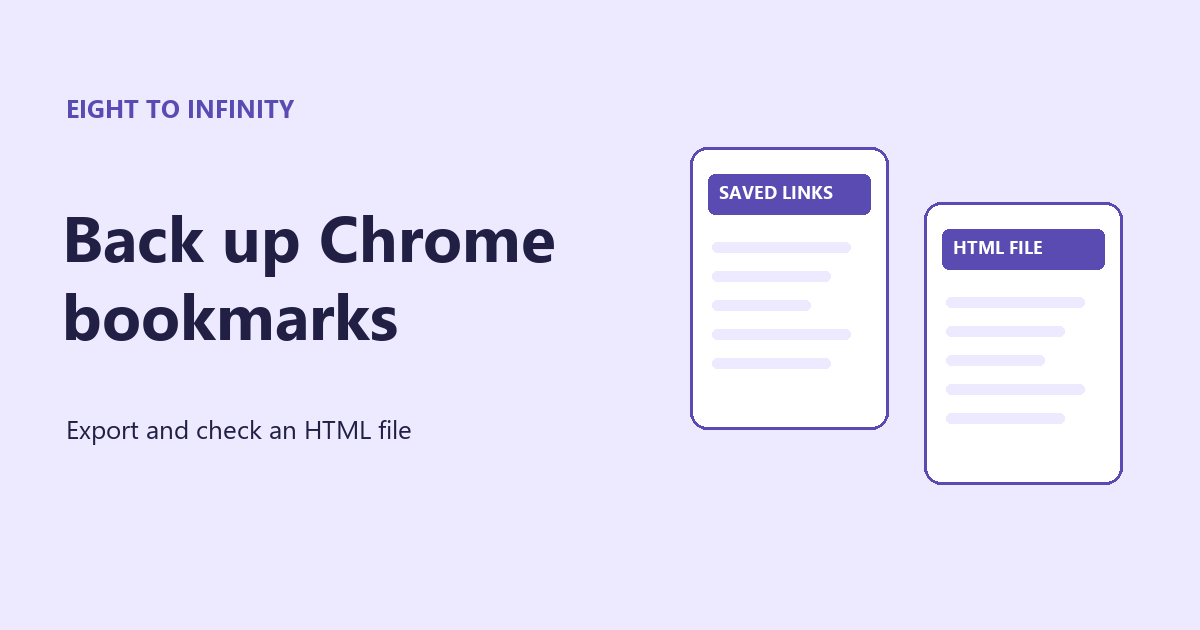
On a computer, open Chrome’s Bookmark Manager and choose Export bookmarks from the manager’s own menu. Chrome saves an HTML file. Open that file and check for a bookmark you expect to see before relying on it for a move to another browser or computer.
Choose the profile you mean to back up
Look at the Chrome profile badge and check that the bookmarks you want are visible in that profile. For example, if you keep garden plans in a Personal profile and supplier links in a Work profile, export each profile separately. Give the files names that identify their source, such as bookmarks-personal-2026-11-06.html.
Save the HTML file
From Chrome’s main three-dot menu, choose Bookmarks and lists → Bookmark Manager. Inside the manager, open its own three-dot menu and select Export bookmarks. Choose a folder you can find again and save the file with its .html extension. These steps are for Chrome on a computer. Use a computer for this workflow if you normally browse on a phone.
Check the contents before moving
Find the saved file and open it in your browser. Use the page’s Find command to look for a distinctive bookmark title, such as Balcony planting calendar. Check a second title from a different folder as well. If the expected links are missing, check the source profile and export again. If you are moving to a new computer, put a copy somewhere you can access from that computer. Treat the file as private if it contains personal links or internal URLs.
Import when you are ready
In the destination Chrome profile, open Bookmarks and lists → Import bookmarks and settings and choose the saved HTML file. Check Bookmark Manager afterward. Google notes that imported entries may appear under Other bookmarks if the profile already has bookmarks. If you just want to inspect the backup, opening the HTML file is enough. Import adds bookmarks to the destination profile. The bookmark export covers saved links, so plan separately for browser data such as passwords and history.
Try a small check
Create a temporary bookmark named Backup check in the intended profile and run an export. Find that title in the resulting HTML file. Remove the temporary bookmark and export once more to keep a clean copy. Which two everyday bookmarks would you check first after a move?
Google Chrome Help guide to importing and exporting bookmarks