Open a text heavy webpage in Chrome reading mode
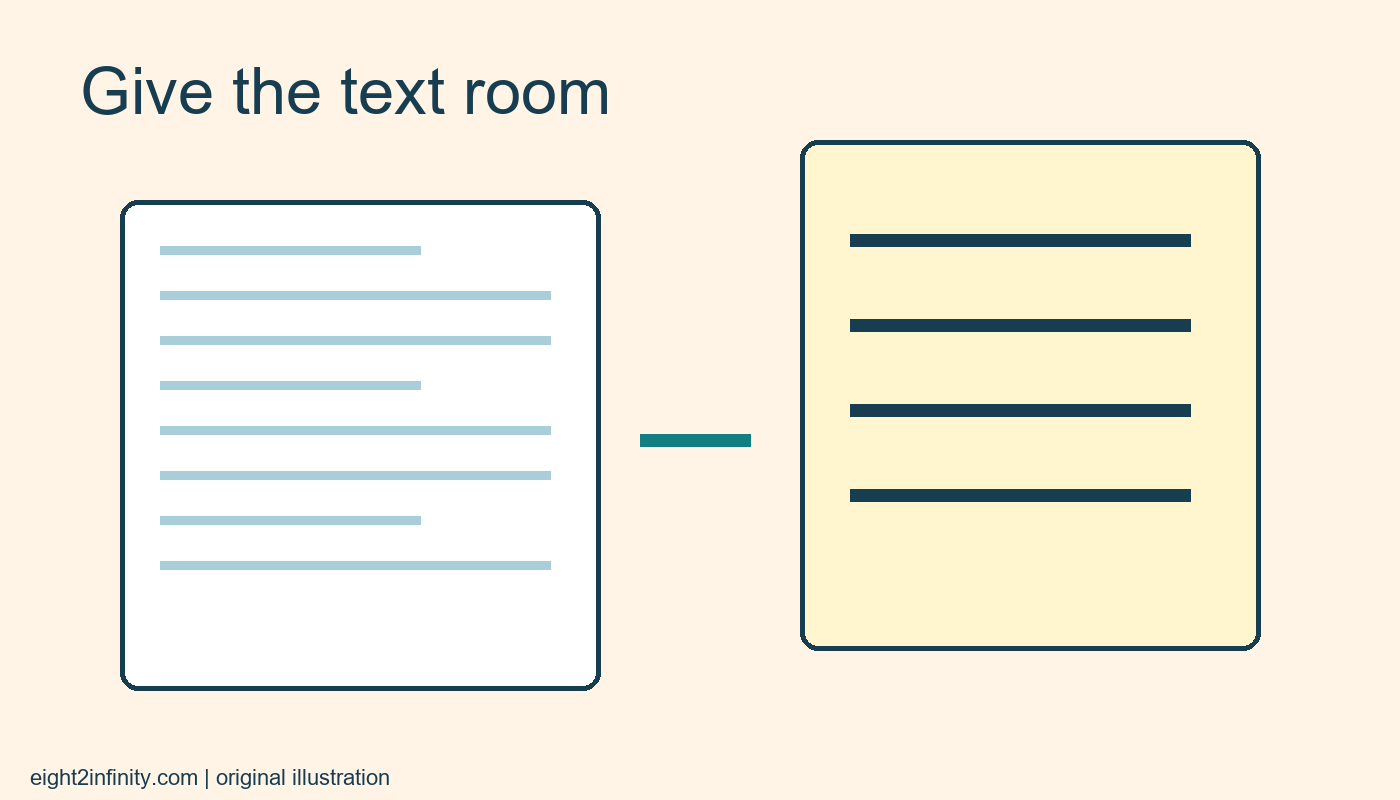
Chrome reading mode can present a text-heavy webpage in a simpler reading view with adjustable text appearance. On a supported page in desktop Chrome, right-click and choose Open in reading mode. Use the reading controls to choose a comfortable font size and appearance, then return to the original page when you need its complete layout or interactive features. Availability and layout vary by site and Chrome version, so treat the view as a reading aid rather than a complete replacement for every webpage.
Choose a sensible first page
Start with a public article containing a clear heading and several paragraphs, such as a museum's explanation of an exhibit. Avoid using a payment page, login form, map, or interactive quiz for the first attempt. Google notes that reading mode is not compatible with all sites and formats. A conventional article makes it easier to judge whether the important text has been captured. Keep the original page open so you can compare what appears in the simplified view.
Before switching, identify one passage you want to read carefully. For an invented museum example, this might be the paragraph explaining why an object was restored. Your goal is to read that explanation without a crowded surrounding layout. It is not to remove evidence, bypass an access rule, or make an authoritative copy. Any meaning that depends on a caption, table, image, or interactive component needs to be checked against the original presentation.
Open and compare the reading view
Right-click an ordinary area of the page and select Open in reading mode if it is available. Google's current help describes an immersive full-screen view and an option in reading settings to use a side panel. Older builds may show different entry points or layouts. Follow the controls actually available in your installed version rather than expecting a fixed panel position. If the article text is missing, Google's guidance suggests selecting relevant text on the original page as another way to trigger the reading content.
Compare the heading and the passage you identified earlier. Check whether paragraphs are in a sensible order and whether important qualifiers remain visible. A sentence beginning However may rely on the paragraph before it. If the view starts halfway through a discussion, return to the original and read the surrounding context there. The simplified display can make reading easier, but it cannot decide which missing context matters to your particular question. That remains a reader's judgment.
Adjust one setting at a time
Use the reading controls to change the font size first. Choose a size that lets you follow a line comfortably without excessive sideways movement. Then try a font style or color theme if available. Google's help also describes spacing controls. Change one setting at a time so you can tell which adjustment improves your experience. These settings apply to reading mode content, not to every page or the whole browser interface.
For example, enlarge the article enough to read a paragraph without leaning toward the screen, then compare a slightly smaller size. More magnification is not automatically better if only a few words fit on each line. A comfortable arrangement depends on screen size, viewing distance, and personal preference. This guide does not make a medical or accessibility guarantee. If you use assistive technology, keep the tools and settings that work for you and consult their current documentation for specific navigation behavior.
Return to the source for complete context
When an article refers to a figure, linked document, or data table, inspect it on the original page. A simplified reading view may present material differently or omit elements that are central to the explanation. If you are recording a fact for study notes, save the original page title and address. The reading view is a display choice, not a new publication date or a separate source. Cite the original author and page rather than Chrome as the origin of the information.
Do not assume reading mode creates an offline copy. Network access, website access rules, and the original content still matter. If the page changes later, the text you see may change as well. For a document you need to preserve, use a separate appropriate saving method and verify its completeness. That is a different task from making today's reading session more comfortable. Keeping the tasks separate prevents a successful reading adjustment from being mistaken for a successful backup.
Troubleshoot with a second page
If the command is unavailable, update Chrome through its normal update process and try another ordinary article. Managed devices may have different feature availability. A site built mainly from images or dynamic components may simply be a poor fit. Do not keep altering unrelated browser settings to force one page into the mode. Use the original layout when it conveys the material more reliably. A feature that works on one website need not work identically on another.
For an exercise, read one short passage in both views and write a one-sentence summary. Check that the summary means the same thing when you return to the original. Note your preferred font size and whether a side panel or full-screen view is easier on that screen. Could you still find the author, date, and any qualifying note? A successful session leaves you with a clearer understanding of the source while preserving the habit of checking context whenever presentation changes.