• About
  • Contact
  • Privacy Policy
  • Terms
  • Editorial Policy
  • Affiliate Disclosure
No Result
View All Result
  • Login
Eight to Infinity
  • Home
  • Parenting
    • Child Safety
    • Family Wellness
    • Kids Activities
    • School & Learning
  • Practical Living
    • Cleaning
    • Home Décor
    • Home Improvement
    • Organization
    • Pest Control
  • Pet Care
    • Bird Care
    • Budgie Care
    • Beginner Pet Guides
  • Technology
    • AI Tools
    • Apps
    • Online Safety
    • How-To Tech
  • Money & Work
    • Career
    • Entrepreneurship
    • Financial Planning
    • Investment Advice
    • Making Money Online
  • Food
    • Cooking Tips
    • Recipes
  • Health
    • Healthy Eating
    • Mental Health
    • Wellness
  • Education
    • Career Education
    • Student Guides
    • Study Abroad
  • Travel
    • Destinations
  • Science
    • Facts
  • Lifestyle
    • Beauty
    • Fashion
      • Footwear
    • All Post
  • Home
  • Parenting
    • Child Safety
    • Family Wellness
    • Kids Activities
    • School & Learning
  • Practical Living
    • Cleaning
    • Home Décor
    • Home Improvement
    • Organization
    • Pest Control
  • Pet Care
    • Bird Care
    • Budgie Care
    • Beginner Pet Guides
  • Technology
    • AI Tools
    • Apps
    • Online Safety
    • How-To Tech
  • Money & Work
    • Career
    • Entrepreneurship
    • Financial Planning
    • Investment Advice
    • Making Money Online
  • Food
    • Cooking Tips
    • Recipes
  • Health
    • Healthy Eating
    • Mental Health
    • Wellness
  • Education
    • Career Education
    • Student Guides
    • Study Abroad
  • Travel
    • Destinations
  • Science
    • Facts
  • Lifestyle
    • Beauty
    • Fashion
      • Footwear
    • All Post
No Result
View All Result
Eight to Infinity
No Result
View All Result
Home Technology
Set one familiar page behind Chrome Home button

Set one familiar page behind Chrome Home button

by Nahida Azmin Nishu
November 18, 2026
in Technology
0
ADVERTISEMENT
3
SHARES
21
VIEWS
Share on FacebookShare on Twitter

Set one familiar page behind Chrome Home button

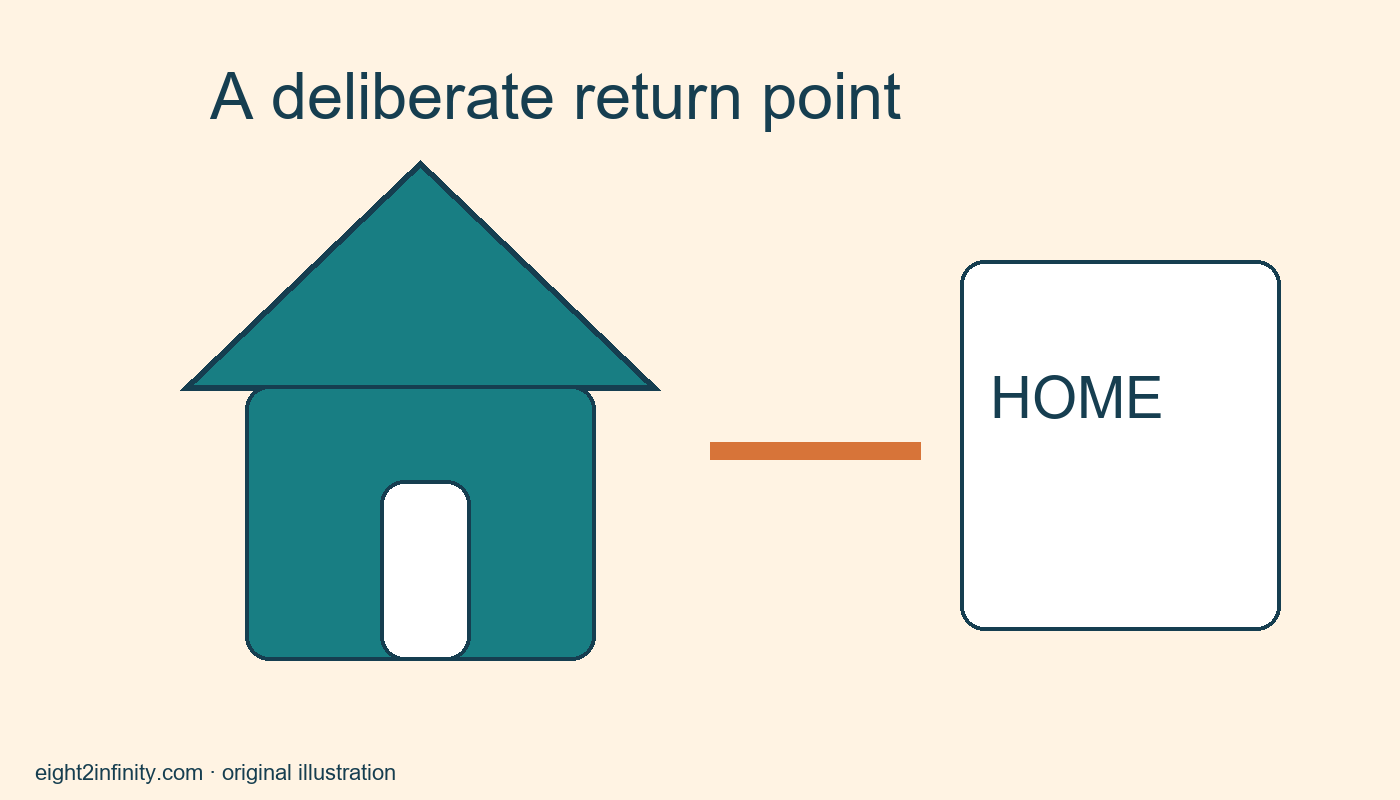
In desktop Chrome, turn on the Home button in Appearance settings and choose the page it should open. The button provides a deliberate way to return to that destination while browsing. Your homepage and your startup pages are separate settings, so changing Home does not by itself define what opens when Chrome launches. This guide uses a familiar public reference page as a low-risk practice destination.

Choose a stable destination

Pick one page you recognize and expect to revisit, such as your public library's main website. Open it normally first and verify that the address is correct. Avoid copying an address from an unexpected pop-up or a lookalike search result. A homepage is a convenience setting, so there is no reason to use a link whose identity you do not understand. Use your own familiar destination rather than an invented example address.

ADVERTISEMENT

Consider whether the page is useful when you are not signed in. A personal account dashboard may show a sign-in prompt instead of the information you expect. A temporary results page may also stop working after its session expires. For the initial exercise, use a stable public page. That keeps the test focused on the Home button rather than account state, permissions, or a disappearing search session.

Enable the button

Open Chrome's menu and go to Settings. Choose Appearance and turn on Show Home button. Under that control, choose the custom-page option and enter the address of your selected page. Chrome also offers the New Tab page as a Home destination; choose the custom page for this exercise. The exact wording can change with browser versions, so use the visible settings labels and the current Google help reference below.

Return to an ordinary browsing tab. Look for the Home symbol near the address bar. Select it and inspect the resulting page and address. The expected result is your chosen destination, not merely a page with a similar title. If the page redirects to a different address, confirm that the redirect belongs to the site you intended. A recognizable page title alone is not a complete check of the destination.

Test from a second starting point

Navigate to another harmless public page, then select Home again. This second test confirms that the button works as a return point from normal browsing. It also makes the distinction from a bookmark clearer: the Home button has one configured destination, while your bookmarks can contain many choices. Use whichever mechanism fits the task rather than trying to make one button act like a whole reference library.

Do not judge the setup by opening a new tab. The new-tab experience is a different behavior, and your custom homepage does not necessarily replace it. Similarly, closing and reopening Chrome tests startup behavior rather than the button alone. Keep the tests separate so a surprising result points to the correct setting. If Home works but launch opens something else, inspect On startup only if you also want to change that behavior.

Make the choice useful to daily work

Suppose you use the library site to check opening hours and search its catalog. Setting it behind Home can make sense if that is your usual reference point. If you instead need three unrelated sites, a small bookmark folder may be easier. The goal is an intentional navigation aid, not a claim that Home is always faster or better. Observe your own browsing pattern before rearranging several settings.

If the computer is shared, discuss the change with the other users of the same Chrome profile. A familiar destination for you may be confusing for someone else. Separate browser profiles may already provide different environments, but do not create or modify account arrangements just to complete this small exercise. Work in the profile you are authorized to configure and keep a note of the previous Home choice if you may want to restore it.

ADVERTISEMENT

Troubleshoot without guessing

If the button does not appear, revisit Appearance and confirm that Show Home button remains enabled. If the button appears but opens the New Tab page, inspect which destination option is selected. If a custom page opens an error, copy the stored address into a normal tab and check for a typing mistake. These observations identify different causes; repeating the same toggle will not fix an invalid destination address.

A work or school browser can be managed by an administrator. Some settings may be unavailable or enforced, especially in managed environments. Do not attempt to bypass organizational controls. Google's reference notes restrictions for managed Chromebook users, and other managed configurations can also affect available choices. If your browser indicates that a policy controls the setting, use the approved configuration or ask the administrator through your usual support route.

Reverse the practice change

To stop using a custom page, return to Appearance and select the New Tab option or turn off the Home button. Revisit the browser window to confirm the outcome. This is a reversible navigation preference, and you can change it when your needs change. Try explaining the difference between homepage, startup page, and new tab in one sentence each. Which of those behaviors were you actually trying to change before opening Settings?

Sources and related reading

Primary reference and scope

Rename and group a few Chrome bookmarks

Tags: set one familiar page behind chrome home buttontechnology
Previous Post

Make a jigsaw box record without claiming every piece is present

Next Post

Choose two specific pages for desktop Chrome startup

Nahida Azmin Nishu

Nahida Azmin Nishu

Related Posts

Choose two specific pages for desktop Chrome startup
Technology

Choose two specific pages for desktop Chrome startup

November 18, 2026
Move a research tab into its own Chrome window
Technology

Move a research tab into its own Chrome window

November 18, 2026
Pin one reference tab in desktop Chrome
Technology

Pin one reference tab in desktop Chrome

November 18, 2026
Change sound permission for one website in Chrome
Technology

Change sound permission for one website in Chrome

November 16, 2026
Next Post
Choose two specific pages for desktop Chrome startup

Choose two specific pages for desktop Chrome startup

No Result
View All Result
ADVERTISEMENT

Categories

  • All Post (4)
  • Business and Finance (61)
  • Education (86)
  • Facts (28)
  • Food and Drink (86)
    • Cooking Tips (19)
  • Health and Fitness (85)
    • Mental Health (13)
  • Lifestyle (106)
  • Parenting (51)
  • Pet Care (53)
  • Practical Living (88)
    • Organization (18)
  • Science (15)
  • Technology (94)
  • Travel (78)
    • Destinations (10)

Recent.

Check whether a flour instruction means sift before or after measuring

Check whether a flour instruction means sift before or after measuring

November 18, 2026
Prepare lemon zest before measuring the rest of a bake

Prepare lemon zest before measuring the rest of a bake

November 18, 2026
Find a right triangle area by halving a rectangle

Find a right triangle area by halving a rectangle

November 18, 2026
ADVERTISEMENT
Facebook Youtube Instagram

Eight to Infinity is a online magazine website where you can find something that you might interested to know or find something new to know.

Category

  • All Post (4)
  • Business and Finance (61)
  • Cooking Tips (19)
  • Destinations (10)
  • Education (86)
  • Facts (28)
  • Food and Drink (68)
  • Health and Fitness (72)
  • Lifestyle (106)
  • Mental Health (13)
  • Organization (18)
  • Parenting (51)
  • Pet Care (53)
  • Practical Living (70)
  • Science (15)
  • Technology (94)
  • Travel (78)

Tags

age appropriate chores for kids and Australia awareness benefits Bird Care climate change college students Cooking Tips dos Education exploring fashion future Galah Cockatoo German culture hair care health Healthy Lifestyle higher education home remedies how how to train a puppy basic commands impact Instant Noodles intersection mental health education mental illness natural remedies Nutrition Organization parakeet care Parenting Tips Pet Birds Practical Living Rome screen time rules for kids stigma street technology the travel wildlife Windows 11 world

© 2024 Eight to Infinity - Developed by ZaeimTech.

Welcome Back!

Login to your account below

Forgotten Password?

Retrieve your password

Please enter your username or email address to reset your password.

Log In
Ads Blocker Image Powered by Code Help Pro

Ads Blocker Detected!!!

We have detected that you are using extensions to block ads. Please support us by disabling these ads blocker.

Refresh
No Result
View All Result
  • Home
  • Parenting
    • Child Safety
    • Family Wellness
    • Kids Activities
    • School & Learning
  • Practical Living
    • Cleaning
    • Home Décor
    • Home Improvement
    • Organization
    • Pest Control
  • Pet Care
    • Bird Care
    • Budgie Care
    • Beginner Pet Guides
  • Technology
    • AI Tools
    • Apps
    • Online Safety
    • How-To Tech
  • Money & Work
    • Career
    • Entrepreneurship
    • Financial Planning
    • Investment Advice
    • Making Money Online
  • Food
    • Cooking Tips
    • Recipes
  • Health
    • Healthy Eating
    • Mental Health
    • Wellness
  • Education
    • Career Education
    • Student Guides
    • Study Abroad
  • Travel
    • Destinations
  • Science
    • Facts
  • Lifestyle
    • Beauty
    • Fashion
      • Footwear
    • All Post

© 2024 Eight to Infinity - Developed by ZaeimTech.

This website uses cookies. By continuing to use this website you are giving consent to cookies being used. Visit our Privacy and Cookie Policy.