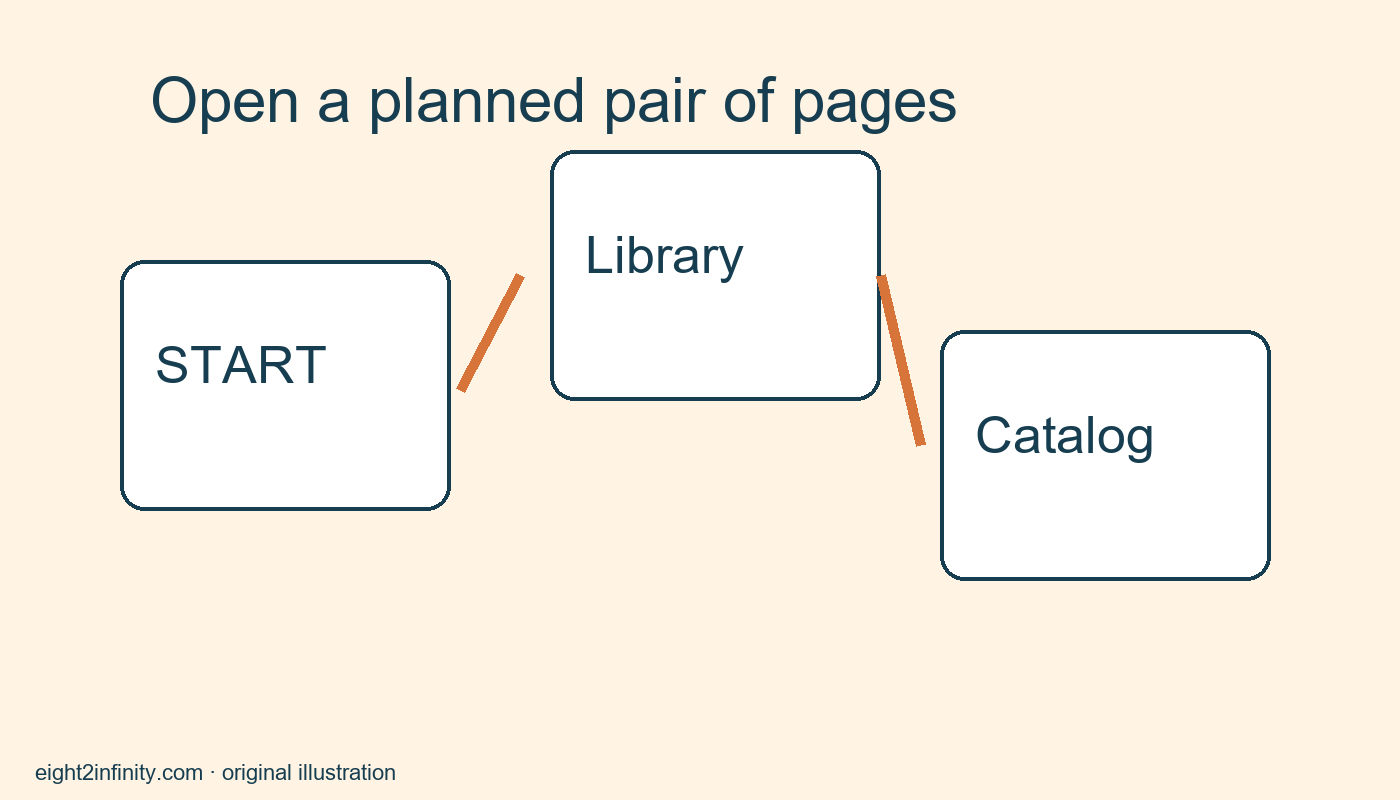
Choose two specific pages for desktop Chrome startup
Desktop Chrome can open a specific page or set of pages when it starts. Use the On startup settings to add the exact destinations you want, then test by closing and reopening Chrome when it is safe to do so. Keep the set small so it supports a routine rather than creating a wall of tabs. This article covers a deliberate startup set, which is separate from the Home button and the option to continue your previous session.
Define the opening routine
Imagine that you begin a weekly library-planning session with the public library website and its catalog page. Those two pages form the whole startup set for this exercise. Open both normally and verify their addresses before adding them. Avoid using a search-result redirect when you can use the actual destination. A stable top-level page is often a better starting point than a temporary form result that depends on an earlier session.
Write down the previous startup choice before changing it. It might be a New Tab page or a continuation of your last session. This note makes it easy to restore the old behavior after the exercise. If Chrome is shared with someone else in the same profile, agree on the change first. A startup set affects the next launch, so the consequences can appear later when another person uses the browser.
Enter the two destinations
Open the Chrome menu, choose Settings, and go to On startup. Select Open a specific page or set of pages. Use Add a new page to enter the first verified address, then add the second. Google also documents using current pages, but adding destinations individually makes the intended pair easier to control during this small exercise. Inspect the list afterward and remove any accidental extra entry through its available menu.
Check the complete addresses in the settings list. Similar titles can hide different destinations, such as a library information page and a catalog sign-in screen. If a destination requires authentication, expect that its visible state may depend on whether you are signed in. Startup settings do not bypass account requirements or guarantee a particular view inside another site's service. For a simple test, public pages minimize that uncertainty.
Test at an appropriate stopping point
Save work in any open forms or web applications before closing the browser. Do not close a busy session merely to prove a preference immediately. When you are ready, close Chrome and reopen it. Inspect the tabs and addresses that appear. The planned result is the two-page set you entered. If another Chrome window or background process affects what you observe, describe that actual behavior rather than claiming a test you did not perform.
Opening a new window while Chrome is already running is not always the same test as a fresh application launch. Likewise, opening a new tab tests the new-tab behavior. Keep the scope of your check clear. If you are teaching someone else, ask them to explain exactly how they restarted and what they saw. That detail is more useful for diagnosis than the vague statement that the pages did not work.
Keep the set intentionally small
A two-page routine is easy to inspect. A list of fifteen sites may include pages you no longer use, duplicate destinations, or services that require attention before you are ready. No universal performance improvement is promised by reducing the list, but a smaller set is easier to understand and maintain. Add another page only when it has a clear role at the beginning of your session.
Review the set when your routine changes. If the catalog moves to a new address, update the stored destination after verifying the new site. If the weekly activity ends, restore your earlier startup choice or use a New Tab page. Startup configuration is a current preference, not a permanent archive of every useful website. Bookmarks are generally better suited to references you want available without opening them at every launch.
Distinguish the related settings
Continue where you left off aims to resume a previous browsing session. A specific-page set aims to open the destinations you named. The Home button opens its own configured destination when you select it. These settings solve different navigation problems. If your goal is to resume research with all its working tabs, a fixed two-page set may be the wrong choice even if the setup works exactly as documented.
For this exercise, avoid changing several settings at once. Keep the Home button preference as it was and change only On startup. Then any difference in launch behavior is easier to associate with the intended change. If you later decide to configure Home too, test it separately. Small isolated preference changes are easier to evaluate and reverse than a collection of simultaneous experiments.
Troubleshoot and practice
If the wrong page opens, inspect the saved URL and look for an old or duplicate entry. If a page asks you to sign in, confirm whether that is normal for the destination. If the startup controls are managed or unavailable, follow your organization's policy rather than trying to circumvent it. The current Google help page below describes desktop options and notes managed-environment restrictions.
Remove the second page from the set and predict what should happen on the next appropriate restart. Then restore your original preference if you do not want to keep the practice setup. Write a short note describing which two pages you chose and why they belong at the start of the session. What would make a page useful enough to open automatically rather than remain in a bookmark folder?