• About
  • Contact
  • Privacy Policy
  • Terms
  • Editorial Policy
  • Affiliate Disclosure
No Result
View All Result
  • Login
Eight to Infinity
  • Home
  • Parenting
    • Child Safety
    • Family Wellness
    • Kids Activities
    • School & Learning
  • Practical Living
    • Cleaning
    • Home Décor
    • Home Improvement
    • Organization
    • Pest Control
  • Pet Care
    • Bird Care
    • Budgie Care
    • Beginner Pet Guides
  • Technology
    • AI Tools
    • Apps
    • Online Safety
    • How-To Tech
  • Money & Work
    • Career
    • Entrepreneurship
    • Financial Planning
    • Investment Advice
    • Making Money Online
  • Food
    • Cooking Tips
    • Recipes
  • Health
    • Healthy Eating
    • Mental Health
    • Wellness
  • Education
    • Career Education
    • Student Guides
    • Study Abroad
  • Travel
    • Destinations
  • Science
    • Facts
  • Lifestyle
    • Beauty
    • Fashion
      • Footwear
    • All Post
  • Home
  • Parenting
    • Child Safety
    • Family Wellness
    • Kids Activities
    • School & Learning
  • Practical Living
    • Cleaning
    • Home Décor
    • Home Improvement
    • Organization
    • Pest Control
  • Pet Care
    • Bird Care
    • Budgie Care
    • Beginner Pet Guides
  • Technology
    • AI Tools
    • Apps
    • Online Safety
    • How-To Tech
  • Money & Work
    • Career
    • Entrepreneurship
    • Financial Planning
    • Investment Advice
    • Making Money Online
  • Food
    • Cooking Tips
    • Recipes
  • Health
    • Healthy Eating
    • Mental Health
    • Wellness
  • Education
    • Career Education
    • Student Guides
    • Study Abroad
  • Travel
    • Destinations
  • Science
    • Facts
  • Lifestyle
    • Beauty
    • Fashion
      • Footwear
    • All Post
No Result
View All Result
Eight to Infinity
No Result
View All Result
Home Technology
Locate a downloaded file from the Chrome Downloads list

Locate a downloaded file from the Chrome Downloads list

by Nahida Azmin Nishu
November 19, 2026
in Technology
0
ADVERTISEMENT
3
SHARES
22
VIEWS
Share on FacebookShare on Twitter

Locate a downloaded file from the Chrome Downloads list

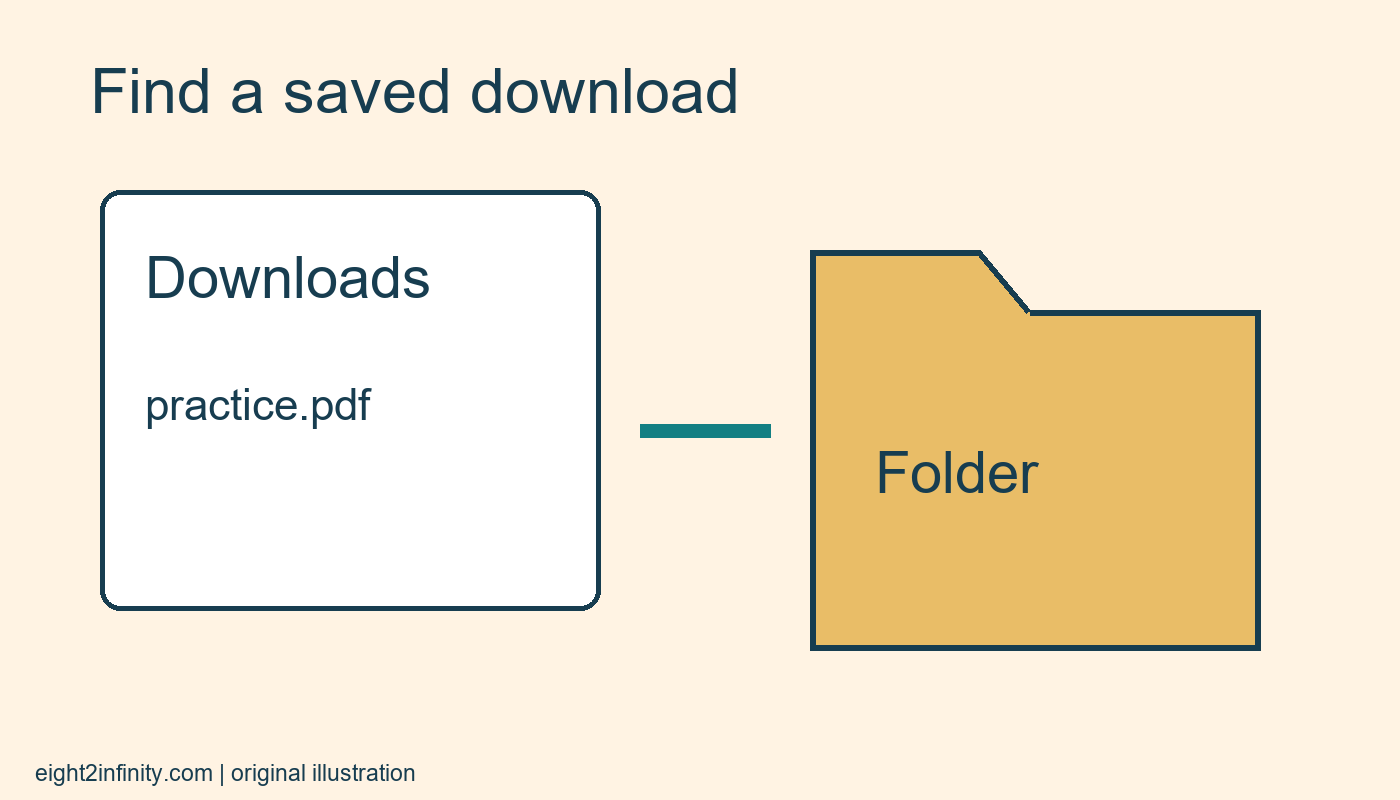
Open Chrome's menu and choose Downloads to find the browser's list of downloaded files. For a completed item, use its available Show in folder action to locate the file on your computer. This is useful when you remember downloading a document but cannot recall its destination. The list is a browser record, so it does not guarantee that a file still exists at the same location after you or another application has moved it.

This walkthrough targets desktop Chrome on a personal computer. Menu wording and icons can change, and managed devices may impose restrictions. Follow your organization's rules for work or school files. The example uses a harmless practice PDF from a source you already trust. It does not require downloading software, turning off browser protections, or opening an unfamiliar attachment merely to test whether the Downloads list works.

ADVERTISEMENT

Choose a known completed download

Think of one document you intentionally saved, such as a museum visitor leaflet. Write down any part of its filename you remember and approximately when you downloaded it. If the filename is unfamiliar, the source website may help you distinguish it from unrelated items. Use a practice example that contains no private information, especially if someone else is looking at your screen while you learn the process.

Do not repeatedly click the original download link at this stage. That can create several copies with similar names and make the search harder. The task is to locate the file you already saved. A fresh download might be appropriate later if the original is gone and the source is trustworthy, but first inspect the existing record so you understand what happened to the earlier copy.

ADVERTISEMENT

Open the browser's download record

In Chrome, open the menu at the upper right and choose Downloads. Look for the completed document in the list. Compare its visible filename, source, and date information with what you remember. If the list offers search, use a distinctive part of the name rather than a very broad term such as document. The interface may show recent download controls near the address bar as well, but the menu provides a route to the fuller list.

If you use multiple Chrome profiles, check that you are in the profile where you made the download. A work profile and a personal profile can hold different browsing records. Do not switch accounts or enable synchronization just to make this exercise work. Start with the context you used originally, and remember that a file may also have been saved by a different browser or application entirely.

Reveal the actual folder

For the intended completed item, inspect the available actions. Google's current help describes Show in Folder as an extra action available around the filename. Use the corresponding visible control in your interface. Your operating system's file manager should reveal the saved file or its containing location if the file is still available. Read the folder path so you can find it again without depending on the browser record.

In the original practice scenario, suppose the leaflet is named museum-map.pdf and lives in a folder called Visit planning. Write that path in your notes. Compare the filename in the file manager with the browser entry before opening anything. This guards against confusing museum-map.pdf with a second copy or a similarly named document saved for another trip.

Separate the record from the file

Removing an entry from Chrome's Downloads page does not remove the saved file from the computer, according to Google's current help. Conversely, deleting or moving a file through the operating system can leave a browser entry that no longer points to an available file. Keep those two objects distinct in your reasoning: one is a record of an action, and the other is the stored document itself.

For this exercise, do not remove either one. Simply observe the relationship and record the location. If you later clean up, make deliberate decisions in the appropriate place. Hiding a download record is not a way to free the document's storage space, and deleting the document is not the same as clearing every trace of browsing activity. Each operation has its own purpose.

Investigate a missing target

If the file cannot be revealed or opened, check whether it was renamed, moved to another folder, or deleted. Search the computer for a distinctive filename fragment using your operating system's normal search. Also consider whether the original destination was a removable drive or a synchronized folder that is currently unavailable. Avoid changing security settings to solve a simple location problem.

If the item is an incomplete download, treat that as a different issue from finding a completed file. Read the browser's status or error message and consult its official troubleshooting guidance. Do not assume every missing file can be restored from a Downloads entry. If you choose to obtain a replacement, return to the verified source and confirm that the document still matches your intended task.

Make the next retrieval easier

Once you locate the practice PDF, decide whether its current location is appropriate. You may keep it there or move it deliberately using the operating system. If you move it, expect the old browser record to be a less useful shortcut. Use a descriptive folder and filename where appropriate, and preserve any extension the application needs. Avoid relying on a long sequence of duplicate filenames as an organization method.

Your exercise is to find one known download, reveal its folder, and write a complete sentence describing where it lives. Close the browser and locate the same file through the file manager alone. Can you now distinguish the browser's download record from the actual saved document, and explain which one you would change when organizing files?

Sources and related reading

Primary reference and scope

Rename and group a few Chrome bookmarks

Tags: locate a downloaded file from the chrome downloads listtechnology
Previous Post

Keep one bedding set together inside its pillowcase

Next Post

Find a previously visited page with Chrome history search

Nahida Azmin Nishu

Nahida Azmin Nishu

Related Posts

Find a previously visited page with Chrome history search
Technology

Find a previously visited page with Chrome history search

November 19, 2026
Choose two specific pages for desktop Chrome startup
Technology

Choose two specific pages for desktop Chrome startup

November 18, 2026
Set one familiar page behind Chrome Home button
Technology

Set one familiar page behind Chrome Home button

November 18, 2026
Move a research tab into its own Chrome window
Technology

Move a research tab into its own Chrome window

November 18, 2026
Next Post
Find a previously visited page with Chrome history search

Find a previously visited page with Chrome history search

No Result
View All Result
ADVERTISEMENT

Categories

  • All Post (4)
  • Business and Finance (61)
  • Education (88)
  • Facts (28)
  • Food and Drink (88)
    • Cooking Tips (21)
  • Health and Fitness (85)
    • Mental Health (13)
  • Lifestyle (106)
  • Parenting (51)
  • Pet Care (53)
  • Practical Living (92)
    • Organization (20)
  • Science (15)
  • Technology (96)
  • Travel (78)
    • Destinations (10)

Recent.

Roll cut out cookie dough between parchment sheets

Roll cut out cookie dough between parchment sheets

November 19, 2026
Check baking powder activity before starting a bake

Check baking powder activity before starting a bake

November 19, 2026
Count half hour sessions by dividing a time quantity

Count half hour sessions by dividing a time quantity

November 19, 2026
ADVERTISEMENT
Facebook Youtube Instagram

Eight to Infinity is a online magazine website where you can find something that you might interested to know or find something new to know.

Category

  • All Post (4)
  • Business and Finance (61)
  • Cooking Tips (21)
  • Destinations (10)
  • Education (88)
  • Facts (28)
  • Food and Drink (68)
  • Health and Fitness (72)
  • Lifestyle (106)
  • Mental Health (13)
  • Organization (20)
  • Parenting (51)
  • Pet Care (53)
  • Practical Living (72)
  • Science (15)
  • Technology (96)
  • Travel (78)

Tags

and Australia awareness benefits Bird Care capsule wardrobe budget guide climate change college students Cooking Tips dos Education exploring fashion future Galah Cockatoo German culture hair care health Healthy Lifestyle higher education home remedies how impact Instant Noodles intersection mental health education mental illness natural remedies Nutrition Organization parakeet care Parenting Tips Pet Birds Practical Living Rome screen time rules for kids stigma street teach kids about money age guide technology the travel wildlife Windows 11 world

© 2024 Eight to Infinity - Developed by ZaeimTech.

Welcome Back!

Login to your account below

Forgotten Password?

Retrieve your password

Please enter your username or email address to reset your password.

Log In
Ads Blocker Image Powered by Code Help Pro

Ads Blocker Detected!!!

We have detected that you are using extensions to block ads. Please support us by disabling these ads blocker.

Refresh
No Result
View All Result
  • Home
  • Parenting
    • Child Safety
    • Family Wellness
    • Kids Activities
    • School & Learning
  • Practical Living
    • Cleaning
    • Home Décor
    • Home Improvement
    • Organization
    • Pest Control
  • Pet Care
    • Bird Care
    • Budgie Care
    • Beginner Pet Guides
  • Technology
    • AI Tools
    • Apps
    • Online Safety
    • How-To Tech
  • Money & Work
    • Career
    • Entrepreneurship
    • Financial Planning
    • Investment Advice
    • Making Money Online
  • Food
    • Cooking Tips
    • Recipes
  • Health
    • Healthy Eating
    • Mental Health
    • Wellness
  • Education
    • Career Education
    • Student Guides
    • Study Abroad
  • Travel
    • Destinations
  • Science
    • Facts
  • Lifestyle
    • Beauty
    • Fashion
      • Footwear
    • All Post

© 2024 Eight to Infinity - Developed by ZaeimTech.

This website uses cookies. By continuing to use this website you are giving consent to cookies being used. Visit our Privacy and Cookie Policy.