Pin one reference tab in desktop Chrome
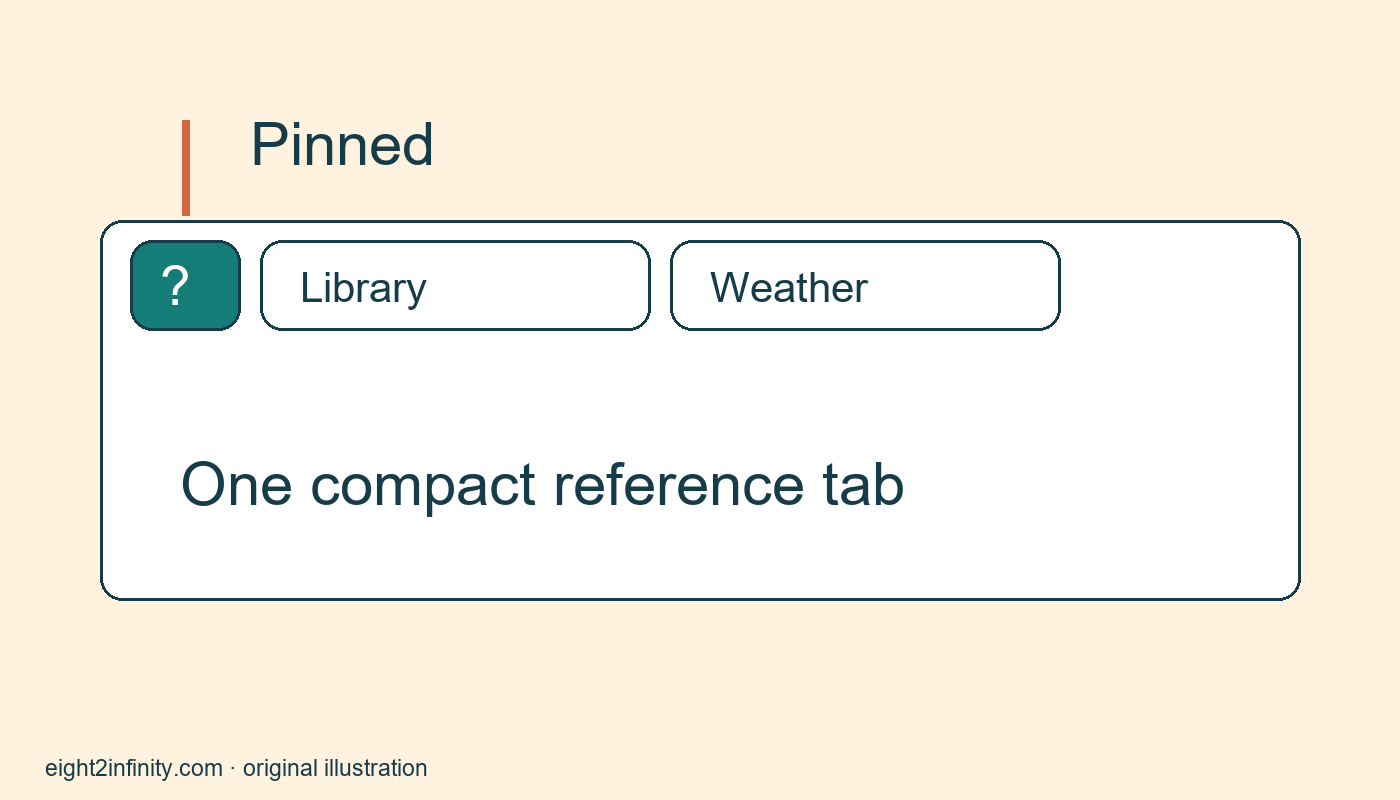
Pin a reference tab in desktop Chrome by right-clicking its tab and choosing Pin. The tab becomes compact and moves into the pinned area on the left. This is useful for keeping one reference page available while working with several ordinary tabs. Pinning is a tab arrangement feature. It is not a bookmark, a backup of the page, or a guarantee that the page will always reopen after every browser session.
Google documents pinning and unpinning under its Chrome tab management guidance. This exercise uses Chrome on a desktop computer with a mouse or equivalent pointing device. Mobile tab controls differ, and managed browsers may apply organization-specific settings. Use a harmless public reference page rather than an account page with sensitive information. The steps are a reproducible learning task, not a claim that your particular Chrome build or startup configuration has been tested.
Start with three distinguishable pages
Open a new window for practice. Open the Google Chrome Help home page, a public library home page you already know, and a public weather information page for your area. Their contents do not matter to the tab arrangement exercise, but their titles and icons should be distinguishable. Avoid opening unfamiliar downloads or signing in just to make the example work. Keep any important existing work in its original window so the practice does not disrupt it.
Choose the help page as the reference you want to retain while inspecting the other two. Before pinning it, notice its current tab width and location. Right-click the help tab itself, not the page body, and choose Pin. The tab should become narrower and move to the left among any other pinned tabs. Its full title may no longer be visible because the compact tab mainly shows the site icon. Click it once to confirm that it still displays the intended page.
Use the pinned page during a task
Select the library tab, then return to the pinned help tab. Select the weather tab, then return again. The point is to learn the reference tab’s compact location rather than to collect many pinned sites. With just one pinned tab, the visual cue is simple. If you pin a large number of unrelated pages, small similar icons can make identification harder. Keep the number appropriate to the current work and unpin pages when their reference role ends.
Hover over the pinned tab if you need to confirm its identity before selecting it. Browser tooltips and hover cards can vary, so use whatever title information your version provides. If several sites share similar icons, a bookmark with a descriptive name may be a better long-term retrieval aid. Do not assume the icon alone is enough for every user. Pinning is useful when its compact representation helps your particular task, not because every frequently visited site needs to be pinned.
Unpin without confusing it with closing
Right-click the pinned tab and choose Unpin. It should return to an ordinary tab appearance. The page remains open; you have changed the tab’s arrangement rather than closed the website. This is the safest way to end the practice because it makes the distinction visible. If you intend to close the page, use the normal closing action separately after checking that no unsaved work depends on it. Pinning should never replace the habit of saving actual work in its application.
Repeat the pin and unpin sequence once more. Observe the difference between selecting a tab, pinning it, unpinning it, and closing it. These actions solve different problems. A pinned tab can still be closed, and a web page can still change or become unavailable. If you need the address later, create a bookmark or keep it in a suitable note. If you need a durable record of content, evaluate an appropriate save method separately and respect the site’s terms.
Diagnose common misunderstandings
If you cannot find Pin, confirm that you opened the tab’s context menu. Right-clicking a link or a blank area inside the page opens a different menu. If the tab disappears into a compact icon, look at the left side of the tab strip before assuming it closed. If it was already pinned, the menu should offer Unpin instead. A small difference in wording or placement can occur between versions, so consult the current official help if the controls do not match.
Do not promise that pinned tabs will restore under every startup setting. Browser profiles, session state, managed policies, and user actions can affect what reopens. This article does not ask you to alter startup settings. Likewise, do not describe pinning as a privacy feature: someone who can see or use the browser may still see the open page. Close sensitive pages and follow the relevant account and device practices independently of how their tabs are arranged.
Decide whether pinning earns its place
For a reader exercise, choose one public reference page you use during a short task, such as official software help while learning a command. Pin it, complete the task using two ordinary tabs, then unpin it. Did the compact reference help you return to the right page, or did the small icon make it harder to recognize? Keep the technique only if it improves the work. A feature can be useful in one situation and unnecessary in another.
Before closing the practice window, check that any information you need later has been saved appropriately. Clear away the temporary tabs deliberately rather than relying on their pinned state as storage. The desired outcome is a clearer working tab strip and a correct understanding of what pinning changes. You should be able to explain that it makes an open tab compact and easy to keep nearby while leaving bookmarking, content saving, account security, and browser startup behavior as separate concerns.