Create and Test a Webpage QR Code in Chrome
To share a public webpage as a QR code, open the page in desktop Chrome, use its sharing menu to create a QR code, and download the result. Scan the code on a phone before adding it to a handout. Keep a readable web address or descriptive fallback alongside it. A QR code makes a link convenient to scan, but it does not grant access to a page or guarantee that the destination will stay available.
This guide uses a fictional workshop handout as an example. The code should open a public information page that visitors can read without your account. You do not need to buy a tracking service or create an unfamiliar account for this basic task. Google's Chrome help documents the browser's built-in QR sharing feature and its desktop menu route.
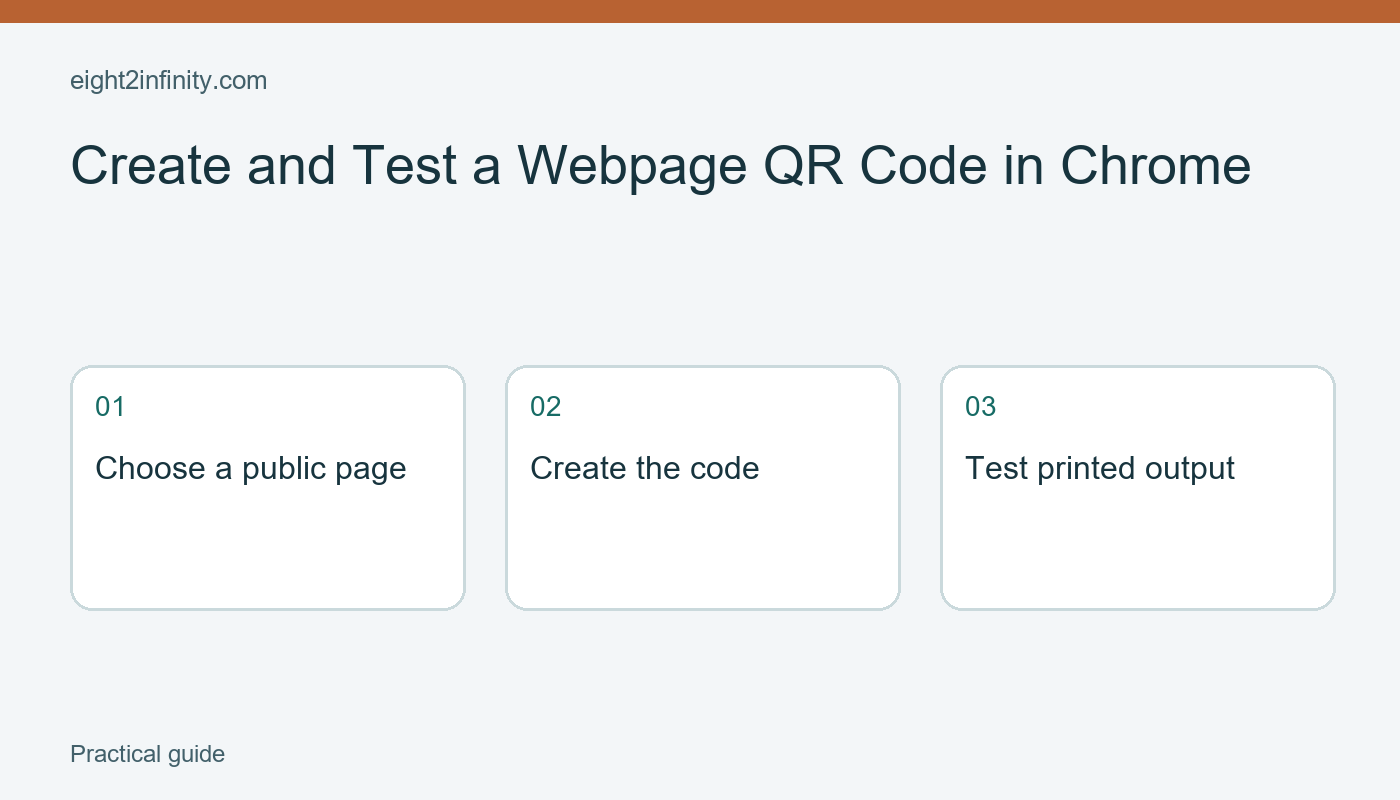
Choose the destination before creating the code
Open the exact page a visitor should see. Check the domain, the page title, and the content. A link to a public programme is more useful than a link to an organizer's private dashboard. If the page requires a login, scanning its code will not remove that requirement. The visitor will still need the appropriate access, which may make it unsuitable for a public handout.
Look for unnecessary information in the address. Do not distribute a link containing a private token, an invitation secret, or personal account data. If you do not understand what part of an address does, use the site's documented public sharing option or ask the page owner. Avoid manually deleting characters and assuming the shortened result still leads to the same content.
For the workshop example, decide that the destination must show the date, location, and public contact method. Read those details before proceeding. A scannable code pointing to an incomplete page is not ready simply because the code image looks professional. Content readiness and scan reliability are two separate checks in the same sharing task.
Generate the code with the browser feature
In the current desktop Chrome layout described by Google, open More, then Cast, save and share, and choose Create QR code. Download the image when the preview offers that option. Menu names can change with browser versions, so consult the linked Chrome help if your layout differs. Avoid installing a random extension merely because an older screenshot shows a different route.
Save the image with a descriptive name such as workshop-public-programme-qr.png. Keep it next to the handout project rather than in an unexplained collection of screenshots. You can also save a short note containing the destination URL and the date you generated it. That note makes later checks easier without requiring you to decode the image every time.
The downloaded image is a way of carrying the address. It does not itself maintain the destination website. If the page is removed or its access changes, people may reach an error even though the image is unchanged. Prefer a public address you expect to remain available for the handout's useful life, and recheck it before printing another batch.
Test the actual scanning experience
Scan the saved image using a phone's normal QR-capable camera or scanner. Read the destination shown before opening it. Confirm that the page opens and presents the expected workshop information. Test from a context that does not rely on your organizer login. A page that works only while you are signed in on your laptop may fail for everyone receiving the printed sheet.
Place the code in the handout, leaving the surrounding white area intact and avoiding decorative overlays. Then print a sample at the size you intend to use and scan that sample. This checks the image after resizing and printing. A successful scan of a large browser preview does not prove that a small, blurred, or low-contrast printed version will work.
Try the sample under ordinary lighting and from a comfortable reading distance. If it is difficult to scan, increase its size or improve the print quality before making a larger batch. There is no single size in this article that guarantees every camera, printer, and viewing distance. Use the real output and intended use as your test conditions.
Make the handout usable without a scan
Add a short label explaining where the code goes, such as Workshop programme and joining details. Include a readable web address or another appropriate way to obtain the information. This helps people whose phones cannot scan it and lets readers decide whether the destination is relevant before opening it. The code should support the message, not become the only explanation on the page.
Do not describe the code as verified safe forever. A link's destination or content can change after your check. Our existing guide to QR code scams explains precautions for people receiving codes. This article addresses the other side of the process: creating a straightforward public-page code and checking that recipients can use it as intended.
Try a complete small handoff
Choose one public page, generate its QR image, add a descriptive label and fallback address, and print one sample. Scan the printed version and confirm the expected content without depending on your private session. Which part failed first, if any: access to the page, the printed scan, or the explanation of what the reader would find?