• About
  • Contact
  • Privacy Policy
  • Terms
  • Editorial Policy
  • Affiliate Disclosure
No Result
View All Result
  • Login
Eight to Infinity
  • Home
  • Parenting
    • Child Safety
    • Family Wellness
    • Kids Activities
    • School & Learning
  • Practical Living
    • Cleaning
    • Home Décor
    • Home Improvement
    • Organization
    • Pest Control
  • Pet Care
    • Bird Care
    • Budgie Care
    • Beginner Pet Guides
  • Technology
    • AI Tools
    • Apps
    • Online Safety
    • How-To Tech
  • Money & Work
    • Career
    • Entrepreneurship
    • Financial Planning
    • Investment Advice
    • Making Money Online
  • Food
    • Cooking Tips
    • Recipes
  • Health
    • Healthy Eating
    • Mental Health
    • Wellness
  • Education
    • Career Education
    • Student Guides
    • Study Abroad
  • Travel
    • Destinations
  • Science
    • Facts
  • Lifestyle
    • Beauty
    • Fashion
      • Footwear
    • All Post
  • Home
  • Parenting
    • Child Safety
    • Family Wellness
    • Kids Activities
    • School & Learning
  • Practical Living
    • Cleaning
    • Home Décor
    • Home Improvement
    • Organization
    • Pest Control
  • Pet Care
    • Bird Care
    • Budgie Care
    • Beginner Pet Guides
  • Technology
    • AI Tools
    • Apps
    • Online Safety
    • How-To Tech
  • Money & Work
    • Career
    • Entrepreneurship
    • Financial Planning
    • Investment Advice
    • Making Money Online
  • Food
    • Cooking Tips
    • Recipes
  • Health
    • Healthy Eating
    • Mental Health
    • Wellness
  • Education
    • Career Education
    • Student Guides
    • Study Abroad
  • Travel
    • Destinations
  • Science
    • Facts
  • Lifestyle
    • Beauty
    • Fashion
      • Footwear
    • All Post
No Result
View All Result
Eight to Infinity
No Result
View All Result
Home Technology
Save and Check a Webpage PDF in Chrome

Save and Check a Webpage PDF in Chrome

by Nahida Azmin Nishu
November 13, 2026
in Technology
0
ADVERTISEMENT
3
SHARES
20
VIEWS
Share on FacebookShare on Twitter

Save and Check a Webpage PDF in Chrome

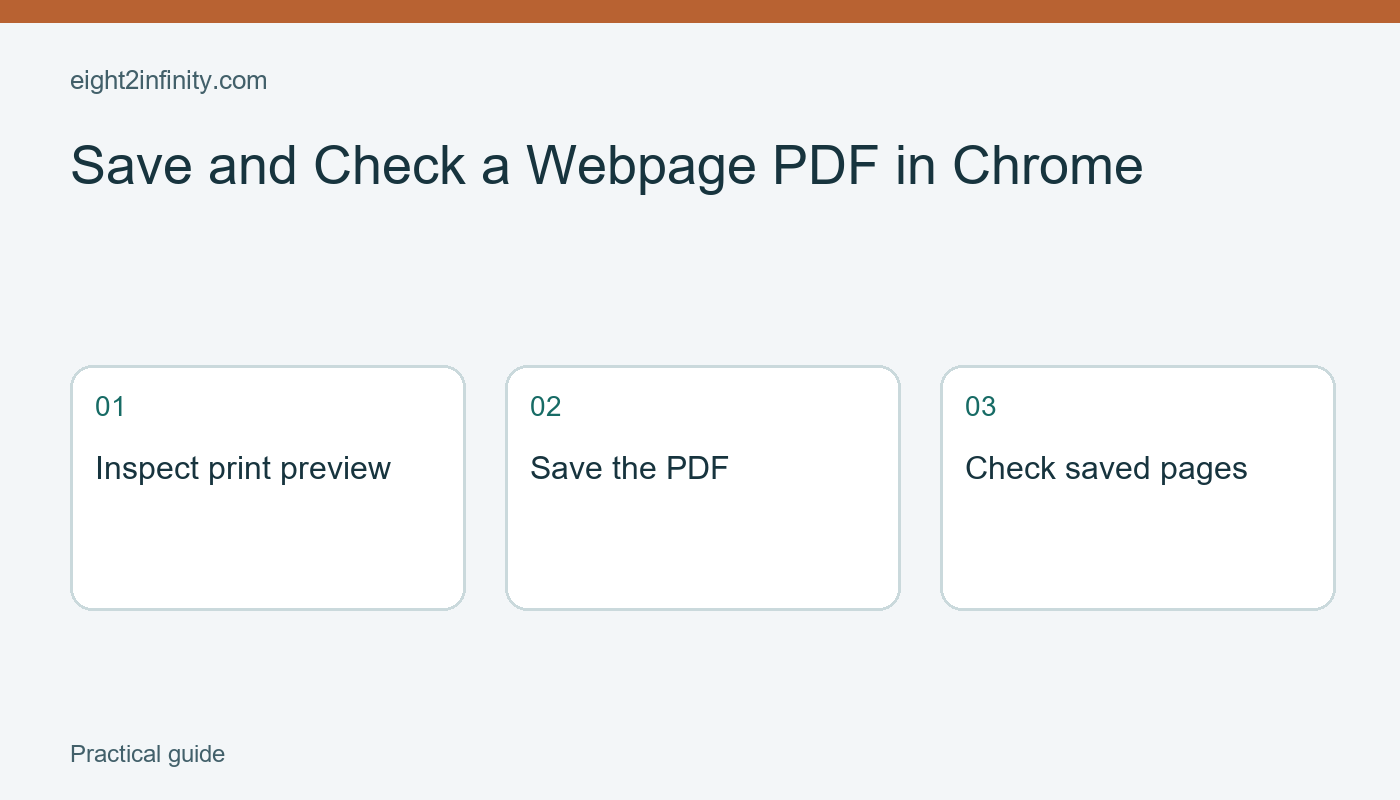
To keep a readable local copy of a webpage, open it in desktop Chrome, choose Print, select Save as PDF, inspect the preview, and save the file. Then open the saved PDF and check the pages you actually need. A successful save creates a file, but only a review tells you whether the important instructions, images, and final paragraphs survived the page's print layout.

This workflow is useful for a public event schedule, a short reference guide, or another page you are allowed to save. A PDF is a snapshot, so its information can become outdated. It also may not preserve interactive features such as expandable sections, videos, or a searchable map. Keep the original page address alongside the saved file when future updates matter.

ADVERTISEMENT

Prepare the page you intend to keep

Start with a public page that contains ordinary text and a few headings. For a practice exercise, use an event programme or a help article that does not contain personal account information. Read the page and identify three things the PDF must include, such as the opening instructions, an important illustration, and the last section. These checkpoints will make the final review specific.

If the page has sections you need to expand, open them before inspecting the print preview. Websites handle printing differently, so expanding a section is not a guarantee that it will appear. Treat the preview as evidence. If the site provides its own official downloadable document or print-friendly version, consider whether that version is a more suitable record for your purpose.

Avoid saving an account page merely because it is already open in the browser. It may include addresses, order details, or other private information. A local PDF can later be copied or shared like any other file. Review the actual visible contents and choose a storage location appropriate to them. The browser's print feature does not decide who should receive the resulting document.

ADVERTISEMENT

Choose a PDF destination

In Chrome on Windows or Linux, press Ctrl and P. On a Mac, use the platform's print shortcut or the browser menu. Select Save as PDF in the destination controls when available. Google's Chrome print guidance describes the printing workflow and PDF saving. The exact labels and options can vary by operating system, browser version, and whether a system print dialog is in use.

Read the preview before clicking Save. Check the page count, orientation, scale, and margins if those controls are available. Start with the default settings and change one option at a time. If a wide table is cut off, a landscape layout or smaller scale may help, but smaller text can become difficult to read. The goal is legibility, not the lowest possible page count.

If you only need selected pages, verify their numbers against the preview rather than guessing from the webpage's headings. A long webpage can print across several sheets, and changing margins or scale can shift the page boundaries. Recheck the selection after a layout change. Saving the wrong range can produce a technically valid PDF that omits the only section you needed.

Give the file a useful identity

Use a filename that describes the subject and the capture date. For example, a fictional file could be community-workshop-programme-2026-11-13.pdf. Avoid naming every download document.pdf or final.pdf. A useful filename helps you distinguish the saved snapshot from a later revision without opening every file in the folder.

Save a short text note or bookmark containing the original URL if the PDF does not include it clearly. Record the date you saved it rather than inventing a publication date. A capture date and a publication date answer different questions. If the source later changes, this distinction makes it easier to explain why the local document differs from the current webpage.

Choose a folder where you can find the document again. A shared download folder may be convenient, but it can also mix private records with public references. This practice exercise needs no special cloud service or browser extension. Use the browser's built-in capability before installing another tool to solve a problem that may already be covered.

Verify the saved copy outside the preview

Open the saved PDF from its folder. Read the first page and navigate to the three checkpoints identified earlier. Check whether illustrations are visible, paragraphs are complete, and the final section is present. If you need searchable text, try finding a distinctive word. This is a practical file check, not a promise that every website will produce accessible or selectable PDF text.

If the PDF is missing an interactive section, return to the source and consider a provided download, a print-friendly view, or a different permitted recording method. Do not claim the PDF is an exact archive of the website. It captures one rendering, and embedded services can behave differently. Keep the original available for features that require a live connection or current information.

Run a small practice check

Save one public reference page and close its browser tab. Reopen the PDF from the folder and locate its beginning, middle, and final section. Our guide to exporting and checking Chrome bookmarks covers a separate way to preserve navigation links rather than page content. What would you need later: the readable snapshot, the current live page, or both?

Sources and related reading

Google Chrome print guidance

How to Export and Check a Chrome Bookmarks Backup

Tags: save webpage PDF Chrometechnology
Previous Post

Make a Simple Home Library Location Index

Next Post

Create and Test a Webpage QR Code in Chrome

Nahida Azmin Nishu

Nahida Azmin Nishu

Related Posts

Create and Test a Webpage QR Code in Chrome
Technology

Create and Test a Webpage QR Code in Chrome

November 13, 2026
Pin One App Before Lending an Android Phone
Technology

Pin One App Before Lending an Android Phone

November 12, 2026
Download an Offline Driving Map on Android
Technology

Download an Offline Driving Map on Android

November 12, 2026
Find a Dismissed Notification on a Pixel Phone
Technology

Find a Dismissed Notification on a Pixel Phone

November 6, 2026
Next Post
Create and Test a Webpage QR Code in Chrome

Create and Test a Webpage QR Code in Chrome

No Result
View All Result
ADVERTISEMENT

Categories

  • All Post (4)
  • Business and Finance (61)
  • Education (74)
  • Facts (28)
  • Food and Drink (74)
    • Cooking Tips (7)
  • Health and Fitness (85)
    • Mental Health (13)
  • Lifestyle (106)
  • Parenting (51)
  • Pet Care (53)
  • Practical Living (64)
    • Organization (6)
  • Science (15)
  • Technology (82)
  • Travel (78)
    • Destinations (10)

Recent.

Check the Butter and Sugar Creaming Step Before Adding Flour

Check the Butter and Sugar Creaming Step Before Adding Flour

November 13, 2026
Plan a Small Cookie Test Batch Before Baking the Whole Tray

Plan a Small Cookie Test Batch Before Baking the Whole Tray

November 13, 2026
Estimate Whole Number Sums Before Calculating

Estimate Whole Number Sums Before Calculating

November 13, 2026
ADVERTISEMENT
Facebook Youtube Instagram

Eight to Infinity is a online magazine website where you can find something that you might interested to know or find something new to know.

Category

  • All Post (4)
  • Business and Finance (61)
  • Cooking Tips (7)
  • Destinations (10)
  • Education (74)
  • Facts (28)
  • Food and Drink (68)
  • Health and Fitness (72)
  • Lifestyle (106)
  • Mental Health (13)
  • Organization (6)
  • Parenting (51)
  • Pet Care (53)
  • Practical Living (58)
  • Science (15)
  • Technology (82)
  • Travel (78)

Tags

and Australia awareness benefits Bird Care Class 10 Results climate change college students Cooking Tips dos Education exploring fashion future Galah Cockatoo German culture hair care health Healthy Lifestyle higher education home remedies how impact Instant Noodles intersection mental health education mental illness natural remedies Nutrition Organization parakeet care Parenting Tips Pet Birds Practical Living Rafah Rome screen time rules for kids stigma street technology the travel wildlife Windows 11 world

© 2024 Eight to Infinity - Developed by ZaeimTech.

Welcome Back!

Login to your account below

Forgotten Password?

Retrieve your password

Please enter your username or email address to reset your password.

Log In
No Result
View All Result
  • Home
  • Parenting
    • Child Safety
    • Family Wellness
    • Kids Activities
    • School & Learning
  • Practical Living
    • Cleaning
    • Home Décor
    • Home Improvement
    • Organization
    • Pest Control
  • Pet Care
    • Bird Care
    • Budgie Care
    • Beginner Pet Guides
  • Technology
    • AI Tools
    • Apps
    • Online Safety
    • How-To Tech
  • Money & Work
    • Career
    • Entrepreneurship
    • Financial Planning
    • Investment Advice
    • Making Money Online
  • Food
    • Cooking Tips
    • Recipes
  • Health
    • Healthy Eating
    • Mental Health
    • Wellness
  • Education
    • Career Education
    • Student Guides
    • Study Abroad
  • Travel
    • Destinations
  • Science
    • Facts
  • Lifestyle
    • Beauty
    • Fashion
      • Footwear
    • All Post

© 2024 Eight to Infinity - Developed by ZaeimTech.

This website uses cookies. By continuing to use this website you are giving consent to cookies being used. Visit our Privacy and Cookie Policy.