• About
  • Contact
  • Privacy Policy
  • Terms
  • Editorial Policy
  • Affiliate Disclosure
No Result
View All Result
  • Login
Eight to Infinity
  • Home
  • Parenting
    • Child Safety
    • Family Wellness
    • Kids Activities
    • School & Learning
  • Practical Living
    • Cleaning
    • Home Décor
    • Home Improvement
    • Organization
    • Pest Control
  • Pet Care
    • Bird Care
    • Budgie Care
    • Beginner Pet Guides
  • Technology
    • AI Tools
    • Apps
    • Online Safety
    • How-To Tech
  • Money & Work
    • Career
    • Entrepreneurship
    • Financial Planning
    • Investment Advice
    • Making Money Online
  • Food
    • Cooking Tips
    • Recipes
  • Health
    • Healthy Eating
    • Mental Health
    • Wellness
  • Education
    • Career Education
    • Student Guides
    • Study Abroad
  • Travel
    • Destinations
  • Science
    • Facts
  • Lifestyle
    • Beauty
    • Fashion
      • Footwear
    • All Post
  • Home
  • Parenting
    • Child Safety
    • Family Wellness
    • Kids Activities
    • School & Learning
  • Practical Living
    • Cleaning
    • Home Décor
    • Home Improvement
    • Organization
    • Pest Control
  • Pet Care
    • Bird Care
    • Budgie Care
    • Beginner Pet Guides
  • Technology
    • AI Tools
    • Apps
    • Online Safety
    • How-To Tech
  • Money & Work
    • Career
    • Entrepreneurship
    • Financial Planning
    • Investment Advice
    • Making Money Online
  • Food
    • Cooking Tips
    • Recipes
  • Health
    • Healthy Eating
    • Mental Health
    • Wellness
  • Education
    • Career Education
    • Student Guides
    • Study Abroad
  • Travel
    • Destinations
  • Science
    • Facts
  • Lifestyle
    • Beauty
    • Fashion
      • Footwear
    • All Post
No Result
View All Result
Eight to Infinity
No Result
View All Result
Home Technology
Adjust one websites zoom in desktop Chrome

Adjust one websites zoom in desktop Chrome

by Nahida Azmin Nishu
November 14, 2026
in Technology
0
ADVERTISEMENT
3
SHARES
20
VIEWS
Share on FacebookShare on Twitter

Adjust one websites zoom in desktop Chrome

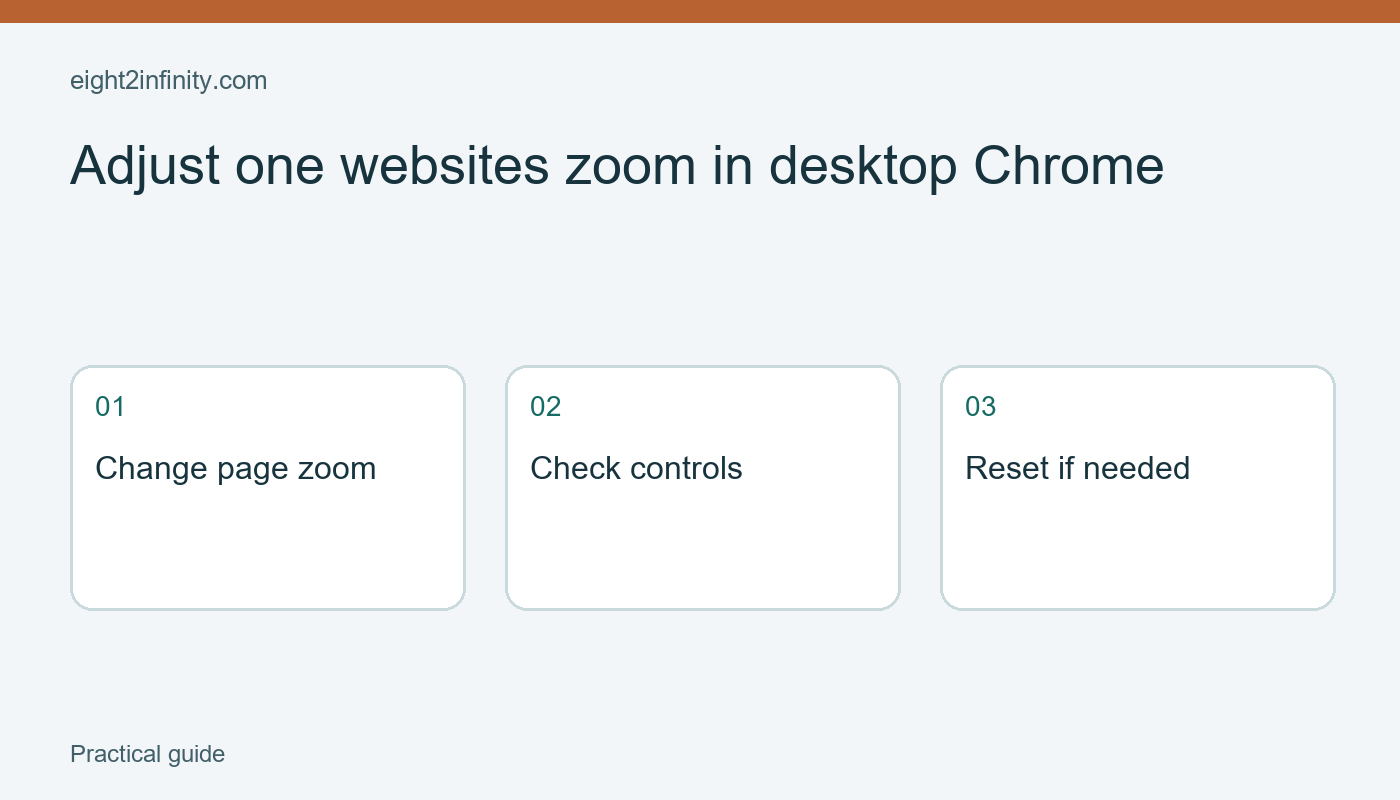
To make a particular website easier to read in desktop Chrome, open the page, use the browser's Zoom controls, and check that the site's navigation and forms still work. Start with one site before changing the browser's default for every page. This guide uses a public information page as a practice example. It explains browser zoom and a simple usability check; it does not claim that enlarging a page resolves every accessibility or display problem.

Choose a page with a clear task

Open a public library or museum page that contains an article and ordinary navigation links. Avoid using a payment form, private account, or unsaved application for your first experiment. Choose one task, such as reading an opening paragraph and finding the opening-hours link. Write down what makes the current size inconvenient. Perhaps the text is small, the line length is tiring, or a particular control is hard to distinguish. A specific task makes the result easier to judge.

ADVERTISEMENT

Keep your operating system's display settings unchanged during this exercise. Browser zoom and system scaling affect different scopes, and changing both at once makes it harder to understand what helped. Also note whether the problem occurs on every website or only this one. If many unrelated applications are difficult to read, a broader display or accessibility adjustment may be appropriate, but that deserves a separate review. Here, the goal is a controlled change to one site's presentation.

ADVERTISEMENT

Increase the page size gradually

Open Chrome's three-dot menu and find Zoom. Use the plus control to enlarge the page one step, then inspect it before increasing again. Google also documents Ctrl and plus for Windows and Linux, and Command and plus for Mac. Keyboard layouts can differ, so the visible menu controls are a useful fallback. Current desktop Chrome provides these controls, while mobile interfaces and operating-system gestures may differ from the desktop workflow described here.

Read the same paragraph again and try the opening-hours link. Check whether the text is comfortably readable without making the navigation awkward. There is no single percentage that is best for everyone or every site. A wider display, different font, and different page design can change the result. Choose a setting that supports your actual task rather than copying another person's preferred number. If increasing zoom makes the page less usable, step back and inspect the tradeoff.

Check more than the article text

Look at the top navigation, any search field, and the footer. Some layouts rearrange as the available space changes. A menu may collapse into a button or move to another position. That can be a normal responsive design choice, but you still need to find the controls you use. Scroll down and back up to make sure important information is not hidden behind a fixed banner. Do not assume the whole page is usable because the opening paragraph looks better.

If there is a harmless public search box, try entering a simple term and inspect the field label and submit button. Do not submit private information merely to test zoom. Look for horizontal scrolling or content that seems cut off. These observations help you distinguish a comfortable enlargement from a layout that creates another obstacle. A site may need design improvements that browser zoom cannot repair. Use its accessibility or contact channel if a necessary feature remains difficult to use.

Understand the scope of the change

Chrome provides both site-specific zoom behavior and broader appearance settings. This exercise starts with the current site so you can learn what the change does before applying a default across the web. Google documents management of saved site zoom levels in Chrome settings. If a site keeps opening at an unexpected size, inspect those saved levels rather than repeatedly changing unrelated display settings. The precise settings labels can evolve, so follow Chrome's current help when your interface differs.

Browser zoom changes how the page is displayed on your screen. It does not rewrite the publisher's article or guarantee that a printed copy will use the same layout. If you need a PDF or paper copy, inspect print preview as a separate task. Likewise, full-screen mode hides browser interface elements and is a different control. Decide whether the problem is page size, available screen area, or missing navigation before choosing which setting to change.

Keep a reversible preference

Use the minus control to reduce zoom if the chosen size becomes inconvenient. Return to the browser's normal baseline or remove a saved site level through the documented settings when you want to start over. Record your preferred setting only if that helps you reproduce a comfortable setup across devices. Avoid treating the number as a measure of your eyesight or as a diagnosis; it is simply a display preference for a particular situation and page.

For a reader exercise, compare two nearby zoom levels on the same public page. At each level, read one paragraph, open one navigation menu, and find one footer link. Which setting lets you complete all three tasks most comfortably? Note one benefit and one limitation. If neither setting works, describe the exact remaining obstacle, such as a clipped search button. That description is more useful for further troubleshooting than a general statement that the page looks wrong.

Sources and related reading

Primary reference

Save and Check a Webpage PDF in Chrome

Tags: adjust one websites zoom in desktop chrometechnology
Previous Post

Create a borrowed item return log

Next Post

Find a word on a long webpage in Chrome

Nahida Azmin Nishu

Nahida Azmin Nishu

Related Posts

Find a word on a long webpage in Chrome
Technology

Find a word on a long webpage in Chrome

November 14, 2026
Create and Test a Webpage QR Code in Chrome
Technology

Create and Test a Webpage QR Code in Chrome

November 13, 2026
Save and Check a Webpage PDF in Chrome
Technology

Save and Check a Webpage PDF in Chrome

November 13, 2026
Pin One App Before Lending an Android Phone
Technology

Pin One App Before Lending an Android Phone

November 12, 2026
Next Post
Find a word on a long webpage in Chrome

Find a word on a long webpage in Chrome

No Result
View All Result
ADVERTISEMENT

Categories

  • All Post (4)
  • Business and Finance (61)
  • Education (76)
  • Facts (28)
  • Food and Drink (76)
    • Cooking Tips (9)
  • Health and Fitness (85)
    • Mental Health (13)
  • Lifestyle (106)
  • Parenting (51)
  • Pet Care (53)
  • Practical Living (68)
    • Organization (8)
  • Science (15)
  • Technology (84)
  • Travel (78)
    • Destinations (10)

Recent.

Make a small batch of plain dried breadcrumbs

Make a small batch of plain dried breadcrumbs

November 14, 2026
Prepare a round cake pan with a parchment circle

Prepare a round cake pan with a parchment circle

November 14, 2026
Build equivalent ratios with a pencil packing example

Build equivalent ratios with a pencil packing example

November 14, 2026
ADVERTISEMENT
Facebook Youtube Instagram

Eight to Infinity is a online magazine website where you can find something that you might interested to know or find something new to know.

Category

  • All Post (4)
  • Business and Finance (61)
  • Cooking Tips (9)
  • Destinations (10)
  • Education (76)
  • Facts (28)
  • Food and Drink (68)
  • Health and Fitness (72)
  • Lifestyle (106)
  • Mental Health (13)
  • Organization (8)
  • Parenting (51)
  • Pet Care (53)
  • Practical Living (60)
  • Science (15)
  • Technology (84)
  • Travel (78)

Tags

and Australia awareness benefits Bird Care climate change college students Cooking Tips dos Education exploring family bonding fashion future Galah Cockatoo German culture hair care health healthy eating Healthy Lifestyle higher education home remedies how impact Instant Noodles intersection mental health education mental illness natural remedies Nutrition Organization parakeet care Parenting Tips Pet Birds Practical Living Rome screen time rules for kids stigma street technology the travel wildlife Windows 11 world

© 2024 Eight to Infinity - Developed by ZaeimTech.

Welcome Back!

Login to your account below

Forgotten Password?

Retrieve your password

Please enter your username or email address to reset your password.

Log In
No Result
View All Result
  • Home
  • Parenting
    • Child Safety
    • Family Wellness
    • Kids Activities
    • School & Learning
  • Practical Living
    • Cleaning
    • Home Décor
    • Home Improvement
    • Organization
    • Pest Control
  • Pet Care
    • Bird Care
    • Budgie Care
    • Beginner Pet Guides
  • Technology
    • AI Tools
    • Apps
    • Online Safety
    • How-To Tech
  • Money & Work
    • Career
    • Entrepreneurship
    • Financial Planning
    • Investment Advice
    • Making Money Online
  • Food
    • Cooking Tips
    • Recipes
  • Health
    • Healthy Eating
    • Mental Health
    • Wellness
  • Education
    • Career Education
    • Student Guides
    • Study Abroad
  • Travel
    • Destinations
  • Science
    • Facts
  • Lifestyle
    • Beauty
    • Fashion
      • Footwear
    • All Post

© 2024 Eight to Infinity - Developed by ZaeimTech.

This website uses cookies. By continuing to use this website you are giving consent to cookies being used. Visit our Privacy and Cookie Policy.