• About
  • Contact
  • Privacy Policy
  • Terms
  • Editorial Policy
  • Affiliate Disclosure
No Result
View All Result
  • Login
Eight to Infinity
  • Home
  • Parenting
    • Child Safety
    • Family Wellness
    • Kids Activities
    • School & Learning
  • Practical Living
    • Cleaning
    • Home Décor
    • Home Improvement
    • Organization
    • Pest Control
  • Pet Care
    • Bird Care
    • Budgie Care
    • Beginner Pet Guides
  • Technology
    • AI Tools
    • Apps
    • Online Safety
    • How-To Tech
  • Money & Work
    • Career
    • Entrepreneurship
    • Financial Planning
    • Investment Advice
    • Making Money Online
  • Food
    • Cooking Tips
    • Recipes
  • Health
    • Healthy Eating
    • Mental Health
    • Wellness
  • Education
    • Career Education
    • Student Guides
    • Study Abroad
  • Travel
    • Destinations
  • Science
    • Facts
  • Lifestyle
    • Beauty
    • Fashion
      • Footwear
    • All Post
  • Home
  • Parenting
    • Child Safety
    • Family Wellness
    • Kids Activities
    • School & Learning
  • Practical Living
    • Cleaning
    • Home Décor
    • Home Improvement
    • Organization
    • Pest Control
  • Pet Care
    • Bird Care
    • Budgie Care
    • Beginner Pet Guides
  • Technology
    • AI Tools
    • Apps
    • Online Safety
    • How-To Tech
  • Money & Work
    • Career
    • Entrepreneurship
    • Financial Planning
    • Investment Advice
    • Making Money Online
  • Food
    • Cooking Tips
    • Recipes
  • Health
    • Healthy Eating
    • Mental Health
    • Wellness
  • Education
    • Career Education
    • Student Guides
    • Study Abroad
  • Travel
    • Destinations
  • Science
    • Facts
  • Lifestyle
    • Beauty
    • Fashion
      • Footwear
    • All Post
No Result
View All Result
Eight to Infinity
No Result
View All Result
Home Technology
Change sound permission for one website in Chrome

Change sound permission for one website in Chrome

by Nahida Azmin Nishu
November 16, 2026
in Technology
0
ADVERTISEMENT
3
SHARES
20
VIEWS
Share on FacebookShare on Twitter

Change sound permission for one website in Chrome

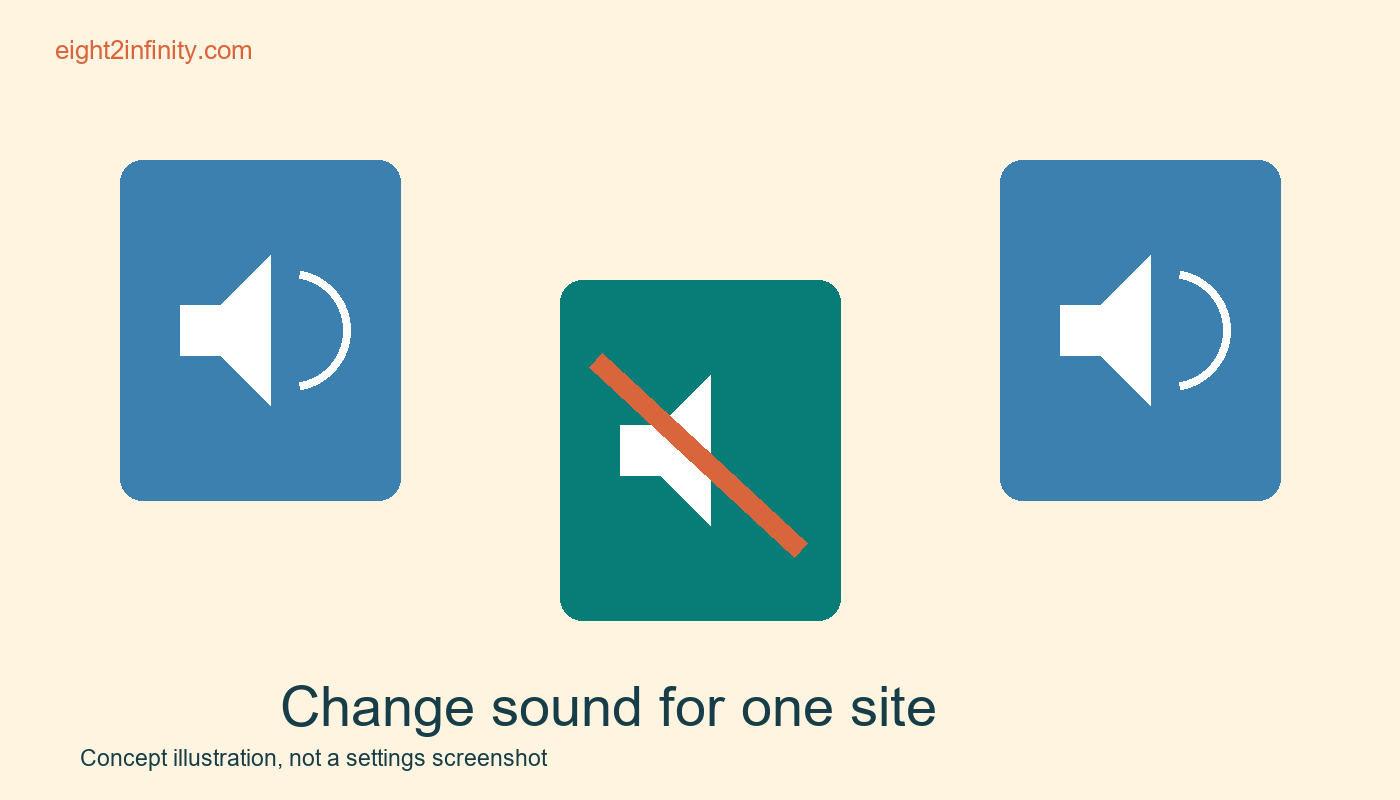
Change a website's Sound permission in desktop Chrome when you want that site's audio behavior to differ from your browser default. Open the site, use the site information control beside its address to reach Site settings, and look for Sound. Choose the setting appropriate to your goal, then reload if Chrome requests it and test the result. This changes a site permission; it does not adjust your computer's speaker volume or select a different audio output device.

Choose a low stakes practice site

Use a site you recognize that has ordinary optional audio, such as a public educational video page. Avoid a meeting, timed lesson, purchase process, or other activity where changing sound could interrupt something important. Note the site's address and current sound behavior. If audio is already silent, first decide whether there is a real site permission question to investigate. A muted video player, system volume setting, or disconnected speaker can produce the same symptom for different reasons.

ADVERTISEMENT

Keep the exercise limited to one site. You do not need to change microphone or camera access to control whether a website plays sound. Those are separate permissions with different privacy implications. Do not grant extra permissions simply because the settings page displays them nearby. The useful habit is to identify the exact control connected to the behavior you want and leave unrelated settings alone.

Open the specific site settings

In desktop Chrome, select the site information control to the left of the address. Its appearance can change across releases, so identify it by its role rather than expecting one permanent icon. Open Site settings when that option is available. Check the address shown for the settings page. You want the site you are testing, not a neighboring tab or a similarly named domain. If the control or menu differs, use Chrome's current site permissions help for your version.

Find Sound in the permission list. Depending on your current configuration, the control may offer a default behavior and specific choices such as allowing or blocking sound. Read the option labels before changing them. Record the original choice so you can restore it. If Sound is not present in the compact site information panel, the fuller Site settings page may provide it; do not substitute a different permission merely because it is easier to find.

Test one intentional change

For this practice, choose the available blocking option for Sound and return to the public audio page. Reload if prompted, then try the site's normal playback control. Observe whether sound is blocked while the rest of the page remains usable. Record what happened rather than assuming a silent page proves the setting worked. The player itself may also be paused or muted, so keep the test simple and change only one variable at a time.

Now restore the original setting and repeat the same playback action. This comparison is more informative than making several settings changes and trying to remember which one mattered. If the site has multiple related domains or embedded content, behavior may require closer inspection. Do not broaden permissions across unrelated sites as a quick fix. Use the exact address and the browser's displayed settings to understand which site your change applies to.

Separate browser and device controls

A site sound permission affects permission to play audio; system output settings affect where and how loudly audio is heard. A video player can have its own mute button. A tab or site may also have a quick mute control depending on the browser version. These controls can overlap in their visible effect, but they are not interchangeable. When troubleshooting, list the controls you have changed so you can reverse them in a known order.

ADVERTISEMENT

If sound remains absent after you allow it, check the player and your normal device output settings before changing more browser permissions. If sound remains audible after a block, verify the tab and domain producing it. Another tab may be playing. Do not assume a setting has failed because the computer still makes a sound from a different source. The practice is about one website's behavior, not a promise to silence every application on the machine.

Review persistent choices

Site permission choices can remain relevant after the current visit. If you block sound for a learning site today, you might wonder why a lesson is silent next week. Keep only exceptions you intentionally want. When a site behaves unexpectedly later, inspect its permission state before reinstalling software or clearing broad categories of browsing data. A narrow review can be easier to understand and less disruptive than resetting many unrelated preferences at once.

Chrome versions, managed work or school policies, and operating systems can affect available controls. An organization may manage settings you cannot change. Respect those controls and use the organization's support route when necessary. This article does not require an extension, account change, or new software. It describes the built in permission approach documented by Google for desktop Chrome; mobile controls may follow a different path and should be checked against the appropriate platform guidance.

Complete a reversible practice

Write down the site's original Sound setting, test a block, and restore the original choice. Can you distinguish the effect of the site permission from the effect of the player's mute button? Which one would you use if you wanted this site to remain quiet on future visits? End the exercise with a deliberate setting rather than an accidental exception that will surprise you the next time you need the site's audio.

Sources and related reading

Primary reference

Rename and group a few Chrome bookmarks

Tags: change sound permission for one website in chrometechnology
Previous Post

Reopen an accidentally closed tab in desktop Chrome

Next Post

Test a rectangle for line symmetry with a paper fold

Nahida Azmin Nishu

Nahida Azmin Nishu

Related Posts

Reopen an accidentally closed tab in desktop Chrome
Technology

Reopen an accidentally closed tab in desktop Chrome

November 16, 2026
Temporarily disable one desktop Chrome extension
Technology

Temporarily disable one desktop Chrome extension

November 16, 2026
Group three research tabs in desktop Chrome
Technology

Group three research tabs in desktop Chrome

November 16, 2026
Rename and group a few Chrome bookmarks
Technology

Rename and group a few Chrome bookmarks

November 15, 2026
Next Post
Test a rectangle for line symmetry with a paper fold

Test a rectangle for line symmetry with a paper fold

No Result
View All Result
ADVERTISEMENT

Categories

  • All Post (4)
  • Business and Finance (61)
  • Education (82)
  • Facts (28)
  • Food and Drink (82)
    • Cooking Tips (15)
  • Health and Fitness (85)
    • Mental Health (13)
  • Lifestyle (106)
  • Parenting (51)
  • Pet Care (53)
  • Practical Living (80)
    • Organization (14)
  • Science (15)
  • Technology (90)
  • Travel (78)
    • Destinations (10)

Recent.

Read a liquid measuring cup at eye level

Read a liquid measuring cup at eye level

November 16, 2026
Whisk dry baking ingredients before adding liquid

Whisk dry baking ingredients before adding liquid

November 16, 2026
Read a bar graph whose scale counts in twos

Read a bar graph whose scale counts in twos

November 16, 2026
ADVERTISEMENT
Facebook Youtube Instagram

Eight to Infinity is a online magazine website where you can find something that you might interested to know or find something new to know.

Category

  • All Post (4)
  • Business and Finance (61)
  • Cooking Tips (15)
  • Destinations (10)
  • Education (82)
  • Facts (28)
  • Food and Drink (68)
  • Health and Fitness (72)
  • Lifestyle (106)
  • Mental Health (13)
  • Organization (14)
  • Parenting (51)
  • Pet Care (53)
  • Practical Living (66)
  • Science (15)
  • Technology (90)
  • Travel (78)

Tags

and Australia awareness benefits Bird Care climate change college students Cooking Tips dos Education exploring fashion future Galah Cockatoo German culture hair care health Healthy Lifestyle higher education home remedies how impact Instant Noodles intersection mental health education mental illness morning stretch routine beginners natural remedies Nutrition Organization parakeet care Parenting Tips Pet Birds pomodoro technique study tips Practical Living Rome screen time rules for kids stigma street technology the travel wildlife Windows 11 world

© 2024 Eight to Infinity - Developed by ZaeimTech.

Welcome Back!

Login to your account below

Forgotten Password?

Retrieve your password

Please enter your username or email address to reset your password.

Log In
Ads Blocker Image Powered by Code Help Pro

Ads Blocker Detected!!!

We have detected that you are using extensions to block ads. Please support us by disabling these ads blocker.

Refresh
No Result
View All Result
  • Home
  • Parenting
    • Child Safety
    • Family Wellness
    • Kids Activities
    • School & Learning
  • Practical Living
    • Cleaning
    • Home Décor
    • Home Improvement
    • Organization
    • Pest Control
  • Pet Care
    • Bird Care
    • Budgie Care
    • Beginner Pet Guides
  • Technology
    • AI Tools
    • Apps
    • Online Safety
    • How-To Tech
  • Money & Work
    • Career
    • Entrepreneurship
    • Financial Planning
    • Investment Advice
    • Making Money Online
  • Food
    • Cooking Tips
    • Recipes
  • Health
    • Healthy Eating
    • Mental Health
    • Wellness
  • Education
    • Career Education
    • Student Guides
    • Study Abroad
  • Travel
    • Destinations
  • Science
    • Facts
  • Lifestyle
    • Beauty
    • Fashion
      • Footwear
    • All Post

© 2024 Eight to Infinity - Developed by ZaeimTech.

This website uses cookies. By continuing to use this website you are giving consent to cookies being used. Visit our Privacy and Cookie Policy.