• About
  • Contact
  • Privacy Policy
  • Terms
  • Editorial Policy
  • Affiliate Disclosure
No Result
View All Result
  • Login
Eight to Infinity
  • Home
  • Parenting
    • Child Safety
    • Family Wellness
    • Kids Activities
    • School & Learning
  • Practical Living
    • Cleaning
    • Home Décor
    • Home Improvement
    • Organization
    • Pest Control
  • Pet Care
    • Bird Care
    • Budgie Care
    • Beginner Pet Guides
  • Technology
    • AI Tools
    • Apps
    • Online Safety
    • How-To Tech
  • Money & Work
    • Career
    • Entrepreneurship
    • Financial Planning
    • Investment Advice
    • Making Money Online
  • Food
    • Cooking Tips
    • Recipes
  • Health
    • Healthy Eating
    • Mental Health
    • Wellness
  • Education
    • Career Education
    • Student Guides
    • Study Abroad
  • Travel
    • Destinations
  • Science
    • Facts
  • Lifestyle
    • Beauty
    • Fashion
      • Footwear
    • All Post
  • Home
  • Parenting
    • Child Safety
    • Family Wellness
    • Kids Activities
    • School & Learning
  • Practical Living
    • Cleaning
    • Home Décor
    • Home Improvement
    • Organization
    • Pest Control
  • Pet Care
    • Bird Care
    • Budgie Care
    • Beginner Pet Guides
  • Technology
    • AI Tools
    • Apps
    • Online Safety
    • How-To Tech
  • Money & Work
    • Career
    • Entrepreneurship
    • Financial Planning
    • Investment Advice
    • Making Money Online
  • Food
    • Cooking Tips
    • Recipes
  • Health
    • Healthy Eating
    • Mental Health
    • Wellness
  • Education
    • Career Education
    • Student Guides
    • Study Abroad
  • Travel
    • Destinations
  • Science
    • Facts
  • Lifestyle
    • Beauty
    • Fashion
      • Footwear
    • All Post
No Result
View All Result
Eight to Infinity
No Result
View All Result
Home Technology
Reopen an accidentally closed tab in desktop Chrome

Reopen an accidentally closed tab in desktop Chrome

by Nahida Azmin Nishu
November 16, 2026
in Technology
0
ADVERTISEMENT
3
SHARES
20
VIEWS
Share on FacebookShare on Twitter

Reopen an accidentally closed tab in desktop Chrome

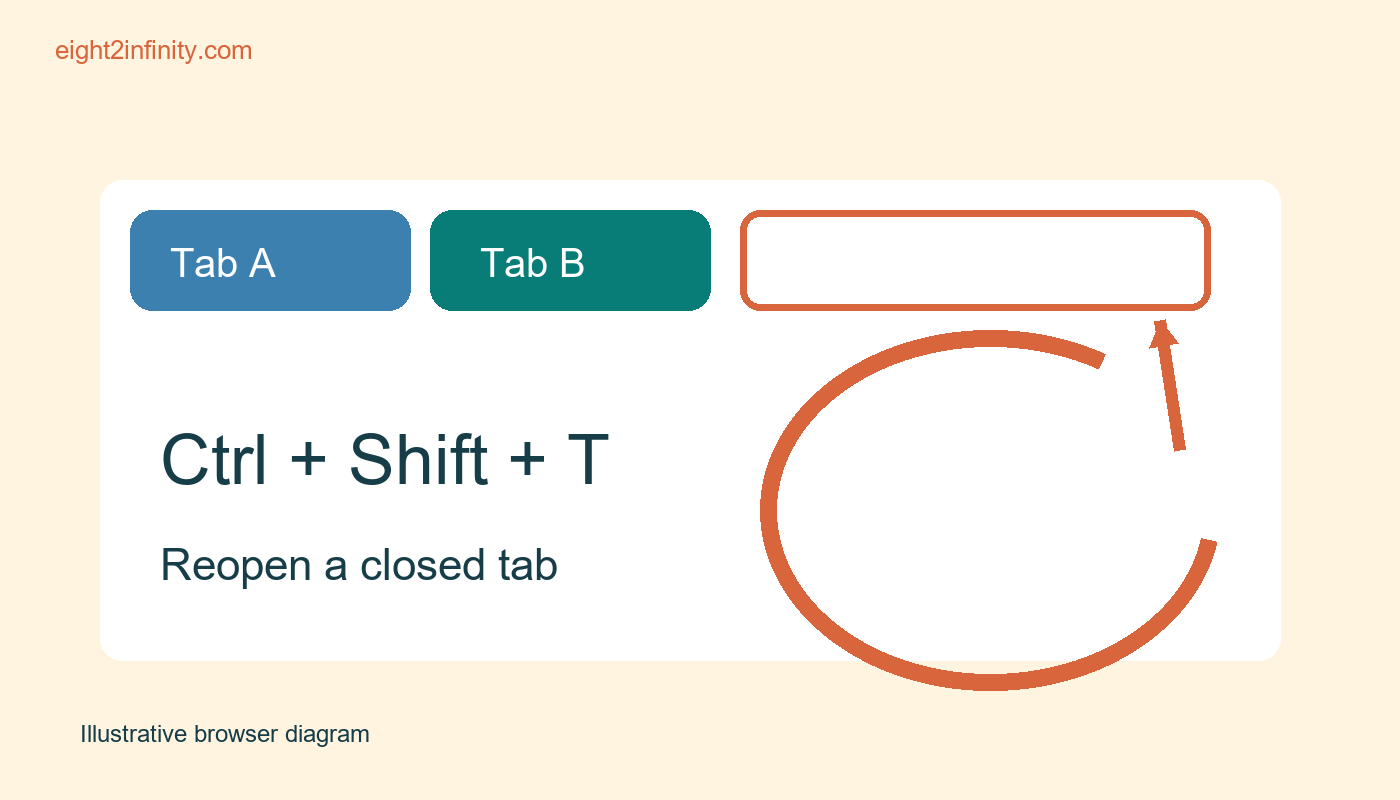
To reopen a recently closed tab in desktop Chrome, press Ctrl plus Shift plus T on Windows or Linux, or Command plus Shift plus T on Mac. The shortcut brings back previously closed tabs in the order Chrome supports for that session. Use it soon after the accidental closure, then confirm you have reopened the intended page. It restores access to a page; it should not be treated as a guarantee that unsaved work or every previous page state will return.

Practice with an ordinary public page

Open a harmless public page in a normal Chrome window, such as a library information page or a weather information page. Avoid forms, purchases, account settings, and private material during the practice. Open another ordinary page in a second tab so the browser remains available when you close the first one. Note the first page's title and address. You are testing a navigation shortcut, not a recovery procedure for important unsaved information.

ADVERTISEMENT

Close the practice tab using its close control. Keep the Chrome window active and press the correct shortcut for your operating system. The recently closed page should reopen. Compare the title and address with your note. If the page reloads, allow it to finish before deciding whether it is the right result. A familiar page appearance alone can be misleading when several similar articles or search results were open at once.

ADVERTISEMENT

Understand the order of reopening

For a controlled second test, open three distinct public pages and label them mentally A, B, and C. Close A, then close B. Press the shortcut once and observe which page returns, then press it again. Chrome's documented shortcut reopens previously closed tabs in the order they were closed for recovery, with the most recently closed item reached first in this simple exercise. Stop when you have the page you need rather than repeatedly pressing the keys without looking.

The shortcut can also be relevant to a closed window, but do not turn that into a promise that an entire browsing session can always be reconstructed. Browser settings, history deletion, profiles, private browsing, and the exact circumstances of closure matter. If important information exists only in a web form, save it through the application's own supported mechanism. Reopening a tab and recovering unsaved application data are separate tasks with different limits.

Check the window and profile

If the wrong page appears, check which Chrome window is active and whether you are using the expected browser profile. A shared computer may have several profiles with different browsing histories. Do not search another person's profile without authorization. Use the title and address you noted to identify your own practice page. If several recovered tabs accumulate, close only the ones you recognize as unnecessary after you have found the correct material.

For ordinary pages that do not return through the shortcut, Chrome's History view may help you find a previously visited address when history is available. Searching history is a different route from reopening the last closed tab. It may locate the address without preserving the exact position or state you remember. If you know the site's address already, navigating directly can be simpler than recovering a long sequence of unrelated closed tabs.

Know what the shortcut does not protect

Do not use recently closed tabs as your only record of research. Save useful pages with bookmarks, notes, or another appropriate method. A recovered page may have changed since you last viewed it, and some content may depend on a login session or an expired link. If you are collecting evidence, record the source and date separately. The convenience of recovery should not replace a deliberate way to store information you will need again.

Private browsing has different history behavior. Do not promise to recover an Incognito session through the same process, and do not use this article as a reason to expect private windows to retain an ordinary recoverable history. Respect the privacy expectations of the person using the computer. The practice here is intentionally limited to normal browsing with public pages and no sensitive form content, so its result should not be generalized beyond that scope.

Troubleshoot the key combination

Press the modifier keys together and tap T once. Make sure you are using Shift as well as Ctrl or Command; Ctrl plus T by itself opens a new tab. Check that focus belongs to Chrome rather than another application. Keyboard layouts, accessibility settings, extensions, or operating system shortcuts can affect how keystrokes are handled. Consult Chrome's current platform specific shortcut help if the combination behaves differently on your device.

If nothing useful returns, stop repeating the shortcut and inspect your available navigation options. The absence of a recovered tab does not prove that Chrome has lost every trace of the page, but it also does not justify claiming a guaranteed recovery method. Look for a known address, a bookmark, or your own notes. For high value work, use the website's saved draft or recovery feature if one exists rather than experimenting with browser history alone.

Build a better habit from the exercise

Close and reopen one practice page, then bookmark it intentionally. Can you explain the difference between recovering a recent accidental closure and saving a page for next month? Write the distinction in your research notes. Which pages in your current session deserve a deliberate saved reference? A shortcut is helpful in the moment, while a small collection of meaningful bookmarks or notes reduces the need to recover important material later.

Sources and related reading

Primary reference

Rename and group a few Chrome bookmarks

Tags: reopen an accidentally closed tab in desktop chrometechnology
Previous Post

Store spare buttons with a garment identification note

Next Post

Change sound permission for one website in Chrome

Nahida Azmin Nishu

Nahida Azmin Nishu

Related Posts

Change sound permission for one website in Chrome
Technology

Change sound permission for one website in Chrome

November 16, 2026
Temporarily disable one desktop Chrome extension
Technology

Temporarily disable one desktop Chrome extension

November 16, 2026
Group three research tabs in desktop Chrome
Technology

Group three research tabs in desktop Chrome

November 16, 2026
Rename and group a few Chrome bookmarks
Technology

Rename and group a few Chrome bookmarks

November 15, 2026
Next Post
Change sound permission for one website in Chrome

Change sound permission for one website in Chrome

No Result
View All Result
ADVERTISEMENT

Categories

  • All Post (4)
  • Business and Finance (61)
  • Education (82)
  • Facts (28)
  • Food and Drink (82)
    • Cooking Tips (15)
  • Health and Fitness (85)
    • Mental Health (13)
  • Lifestyle (106)
  • Parenting (51)
  • Pet Care (53)
  • Practical Living (80)
    • Organization (14)
  • Science (15)
  • Technology (90)
  • Travel (78)
    • Destinations (10)

Recent.

Read a liquid measuring cup at eye level

Read a liquid measuring cup at eye level

November 16, 2026
Whisk dry baking ingredients before adding liquid

Whisk dry baking ingredients before adding liquid

November 16, 2026
Read a bar graph whose scale counts in twos

Read a bar graph whose scale counts in twos

November 16, 2026
ADVERTISEMENT
Facebook Youtube Instagram

Eight to Infinity is a online magazine website where you can find something that you might interested to know or find something new to know.

Category

  • All Post (4)
  • Business and Finance (61)
  • Cooking Tips (15)
  • Destinations (10)
  • Education (82)
  • Facts (28)
  • Food and Drink (68)
  • Health and Fitness (72)
  • Lifestyle (106)
  • Mental Health (13)
  • Organization (14)
  • Parenting (51)
  • Pet Care (53)
  • Practical Living (66)
  • Science (15)
  • Technology (90)
  • Travel (78)

Tags

and Australia awareness benefits Bird Care climate change college students Cooking Tips dos Education exploring fashion future Galah Cockatoo German culture hair care health Healthy Lifestyle higher education home remedies how impact Instant Noodles intersection mental health education mental illness morning stretch routine beginners natural remedies Nutrition Organization parakeet care Parenting Tips Pet Birds pomodoro technique study tips Practical Living Rome screen time rules for kids stigma street technology the travel wildlife Windows 11 world

© 2024 Eight to Infinity - Developed by ZaeimTech.

Welcome Back!

Login to your account below

Forgotten Password?

Retrieve your password

Please enter your username or email address to reset your password.

Log In
Ads Blocker Image Powered by Code Help Pro

Ads Blocker Detected!!!

We have detected that you are using extensions to block ads. Please support us by disabling these ads blocker.

Refresh
No Result
View All Result
  • Home
  • Parenting
    • Child Safety
    • Family Wellness
    • Kids Activities
    • School & Learning
  • Practical Living
    • Cleaning
    • Home Décor
    • Home Improvement
    • Organization
    • Pest Control
  • Pet Care
    • Bird Care
    • Budgie Care
    • Beginner Pet Guides
  • Technology
    • AI Tools
    • Apps
    • Online Safety
    • How-To Tech
  • Money & Work
    • Career
    • Entrepreneurship
    • Financial Planning
    • Investment Advice
    • Making Money Online
  • Food
    • Cooking Tips
    • Recipes
  • Health
    • Healthy Eating
    • Mental Health
    • Wellness
  • Education
    • Career Education
    • Student Guides
    • Study Abroad
  • Travel
    • Destinations
  • Science
    • Facts
  • Lifestyle
    • Beauty
    • Fashion
      • Footwear
    • All Post

© 2024 Eight to Infinity - Developed by ZaeimTech.

This website uses cookies. By continuing to use this website you are giving consent to cookies being used. Visit our Privacy and Cookie Policy.