• About
  • Contact
  • Privacy Policy
  • Terms
  • Editorial Policy
  • Affiliate Disclosure
No Result
View All Result
  • Login
Eight to Infinity
  • Home
  • Parenting
    • Child Safety
    • Family Wellness
    • Kids Activities
    • School & Learning
  • Practical Living
    • Cleaning
    • Home Décor
    • Home Improvement
    • Organization
    • Pest Control
  • Pet Care
    • Bird Care
    • Budgie Care
    • Beginner Pet Guides
  • Technology
    • AI Tools
    • Apps
    • Online Safety
    • How-To Tech
  • Money & Work
    • Career
    • Entrepreneurship
    • Financial Planning
    • Investment Advice
    • Making Money Online
  • Food
    • Cooking Tips
    • Recipes
  • Health
    • Healthy Eating
    • Mental Health
    • Wellness
  • Education
    • Career Education
    • Student Guides
    • Study Abroad
  • Travel
    • Destinations
  • Science
    • Facts
  • Lifestyle
    • Beauty
    • Fashion
      • Footwear
    • All Post
  • Home
  • Parenting
    • Child Safety
    • Family Wellness
    • Kids Activities
    • School & Learning
  • Practical Living
    • Cleaning
    • Home Décor
    • Home Improvement
    • Organization
    • Pest Control
  • Pet Care
    • Bird Care
    • Budgie Care
    • Beginner Pet Guides
  • Technology
    • AI Tools
    • Apps
    • Online Safety
    • How-To Tech
  • Money & Work
    • Career
    • Entrepreneurship
    • Financial Planning
    • Investment Advice
    • Making Money Online
  • Food
    • Cooking Tips
    • Recipes
  • Health
    • Healthy Eating
    • Mental Health
    • Wellness
  • Education
    • Career Education
    • Student Guides
    • Study Abroad
  • Travel
    • Destinations
  • Science
    • Facts
  • Lifestyle
    • Beauty
    • Fashion
      • Footwear
    • All Post
No Result
View All Result
Eight to Infinity
No Result
View All Result
Home Technology
Temporarily disable one desktop Chrome extension

Temporarily disable one desktop Chrome extension

by Nahida Azmin Nishu
November 16, 2026
in Technology
0
ADVERTISEMENT
3
SHARES
20
VIEWS
Share on FacebookShare on Twitter

Temporarily disable one desktop Chrome extension

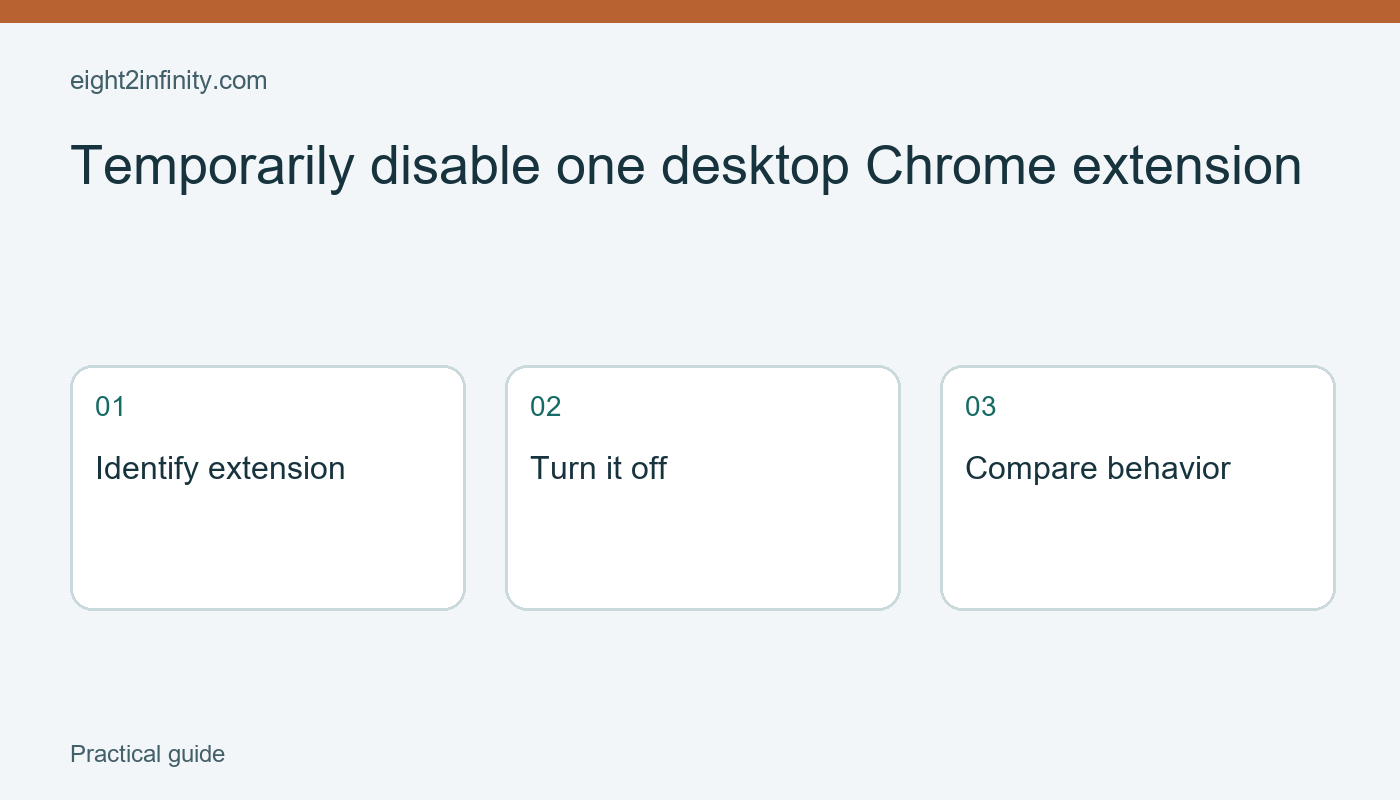
To temporarily disable a desktop Chrome extension, open the extension management page, identify the correct extension, and switch it off. Disabling lets you compare browser behavior without immediately removing the extension. If you are troubleshooting, change one extension at a time and record what happened.

This guide is a modest diagnostic exercise, not a promise that extensions cause every browser problem. Network issues, site changes, cookies, browser settings, and many other factors can affect a page. The example uses a nonessential personal extension on a device you are allowed to manage. Follow your organization's instructions for work or school browsers.

ADVERTISEMENT

Define the behavior you want to compare

Write down a specific observation before changing settings. For example, a public reference page might display an unwanted reading overlay. Record the page address and what you see. A vague statement such as Chrome feels strange makes it hard to tell whether a later change helped or merely coincided with a different situation.

Save any work in open sites before troubleshooting. Reloading a page can discard unsaved form entries or drafts. Use an ordinary public page for the first exercise rather than a payment, account-recovery, or administrative screen. The diagnostic should be easy to reverse and should not interrupt an essential task.

Identify which extension you intend to test and why. If you installed a reading helper and the issue concerns a reading overlay, that is a reasonable candidate. It remains a hypothesis. Do not label an extension malicious or broken solely because its function appears related to the symptom.

Open the extension controls

In desktop Chrome, open the menu and navigate to Extensions, then Manage extensions. Interface wording can change between versions. You can also enter chrome://extensions in the address bar to open Chrome's extension management page. Confirm that you are in the intended profile, because different profiles can contain different extensions.

Read the extension's name and details carefully. Several products may use similar icons or names. If necessary, inspect its details to distinguish it from another extension. Do not remove or disable something just because its icon looks unfamiliar. On a managed device, an administrator may have installed an extension for a required purpose.

Find the extension's enabled toggle and turn it off. Leave other extensions unchanged for this comparison. Note the time and the action in your troubleshooting note. A simple record such as Reading helper off, public page reloaded gives you a basis for a later decision instead of relying on memory.

Compare the same page

Return to the reference page and reload it after ensuring that no unsaved work will be lost. Observe the same feature you recorded earlier. If the overlay disappears, the extension may be involved in that behavior. If nothing changes, avoid concluding immediately that the extension has no role in every possible situation.

Some behavior may depend on a newly opened tab, site state, or another condition. Keep the comparison narrow: the same page, the same task, and one setting changed. If further investigation is needed, make a separate note for the next hypothesis. Randomly toggling several settings makes the results harder to interpret.

If the problem disappears, consider whether the extension is functioning as designed. A reading overlay may simply be an enabled feature rather than a fault. Check the extension's own documentation or settings before deciding to remove it. You may prefer to leave it disabled until you understand the option you need.

Restore or remove deliberately

To restore the extension, return to its management card and turn it on again. Reload the practice page if needed and check that the expected feature returns. This comparison can strengthen your understanding of the relationship, but it still does not establish that every issue on the site comes from that extension.

ADVERTISEMENT

Removal is a separate action. Chrome provides a Remove command, but uninstalling can have consequences for extension-specific settings or data. Consult the developer's documentation before removing a tool that stores information you need. This article does not promise that reinstalling will restore every preference or record.

Do not disable a required organizational extension to bypass a policy. If the controls are unavailable or the browser says the item is managed, contact the appropriate administrator with your specific observation. A page address, browser version, and brief symptom description are more useful than repeated attempts to override a managed setting.

Keep the conclusion proportionate

Your final note might say that the overlay was absent after disabling one reading helper on one page. That is a clear observation. It is more accurate than claiming that Chrome was repaired permanently or that the extension is unsafe. If the issue returns with the extension still disabled, preserve that new evidence and revisit the hypothesis.

For a reader exercise, choose a nonessential extension you recognize, record one visible feature, turn the extension off, and compare a harmless page. Then restore the setting if appropriate. Can you explain exactly what changed and what remains uncertain? End with the browser in the state you actually want, rather than leaving several forgotten experiments active.

Sources and related reading

Primary reference

Adjust one websites zoom in desktop Chrome

Tags: technologytemporarily disable one desktop chrome extension
Previous Post

Group three research tabs in desktop Chrome

Next Post

Interpret a division remainder with seat rows

Nahida Azmin Nishu

Nahida Azmin Nishu

Related Posts

Change sound permission for one website in Chrome
Technology

Change sound permission for one website in Chrome

November 16, 2026
Reopen an accidentally closed tab in desktop Chrome
Technology

Reopen an accidentally closed tab in desktop Chrome

November 16, 2026
Group three research tabs in desktop Chrome
Technology

Group three research tabs in desktop Chrome

November 16, 2026
Rename and group a few Chrome bookmarks
Technology

Rename and group a few Chrome bookmarks

November 15, 2026
Next Post
Interpret a division remainder with seat rows

Interpret a division remainder with seat rows

No Result
View All Result
ADVERTISEMENT

Categories

  • All Post (4)
  • Business and Finance (61)
  • Education (82)
  • Facts (28)
  • Food and Drink (82)
    • Cooking Tips (15)
  • Health and Fitness (85)
    • Mental Health (13)
  • Lifestyle (106)
  • Parenting (51)
  • Pet Care (53)
  • Practical Living (80)
    • Organization (14)
  • Science (15)
  • Technology (90)
  • Travel (78)
    • Destinations (10)

Recent.

Read a liquid measuring cup at eye level

Read a liquid measuring cup at eye level

November 16, 2026
Whisk dry baking ingredients before adding liquid

Whisk dry baking ingredients before adding liquid

November 16, 2026
Read a bar graph whose scale counts in twos

Read a bar graph whose scale counts in twos

November 16, 2026
ADVERTISEMENT
Facebook Youtube Instagram

Eight to Infinity is a online magazine website where you can find something that you might interested to know or find something new to know.

Category

  • All Post (4)
  • Business and Finance (61)
  • Cooking Tips (15)
  • Destinations (10)
  • Education (82)
  • Facts (28)
  • Food and Drink (68)
  • Health and Fitness (72)
  • Lifestyle (106)
  • Mental Health (13)
  • Organization (14)
  • Parenting (51)
  • Pet Care (53)
  • Practical Living (66)
  • Science (15)
  • Technology (90)
  • Travel (78)

Tags

and Australia awareness benefits Bird Care climate change college students Cooking Tips dos Education exploring fashion future Galah Cockatoo German culture hair care health Healthy Lifestyle higher education home remedies how impact Instant Noodles intersection mental health education mental illness morning stretch routine beginners natural remedies Nutrition Organization parakeet care Parenting Tips Pet Birds pomodoro technique study tips Practical Living Rome screen time rules for kids stigma street technology the travel wildlife Windows 11 world

© 2024 Eight to Infinity - Developed by ZaeimTech.

Welcome Back!

Login to your account below

Forgotten Password?

Retrieve your password

Please enter your username or email address to reset your password.

Log In
Ads Blocker Image Powered by Code Help Pro

Ads Blocker Detected!!!

We have detected that you are using extensions to block ads. Please support us by disabling these ads blocker.

Refresh
No Result
View All Result
  • Home
  • Parenting
    • Child Safety
    • Family Wellness
    • Kids Activities
    • School & Learning
  • Practical Living
    • Cleaning
    • Home Décor
    • Home Improvement
    • Organization
    • Pest Control
  • Pet Care
    • Bird Care
    • Budgie Care
    • Beginner Pet Guides
  • Technology
    • AI Tools
    • Apps
    • Online Safety
    • How-To Tech
  • Money & Work
    • Career
    • Entrepreneurship
    • Financial Planning
    • Investment Advice
    • Making Money Online
  • Food
    • Cooking Tips
    • Recipes
  • Health
    • Healthy Eating
    • Mental Health
    • Wellness
  • Education
    • Career Education
    • Student Guides
    • Study Abroad
  • Travel
    • Destinations
  • Science
    • Facts
  • Lifestyle
    • Beauty
    • Fashion
      • Footwear
    • All Post

© 2024 Eight to Infinity - Developed by ZaeimTech.

This website uses cookies. By continuing to use this website you are giving consent to cookies being used. Visit our Privacy and Cookie Policy.