Find a word on a long webpage in Chrome
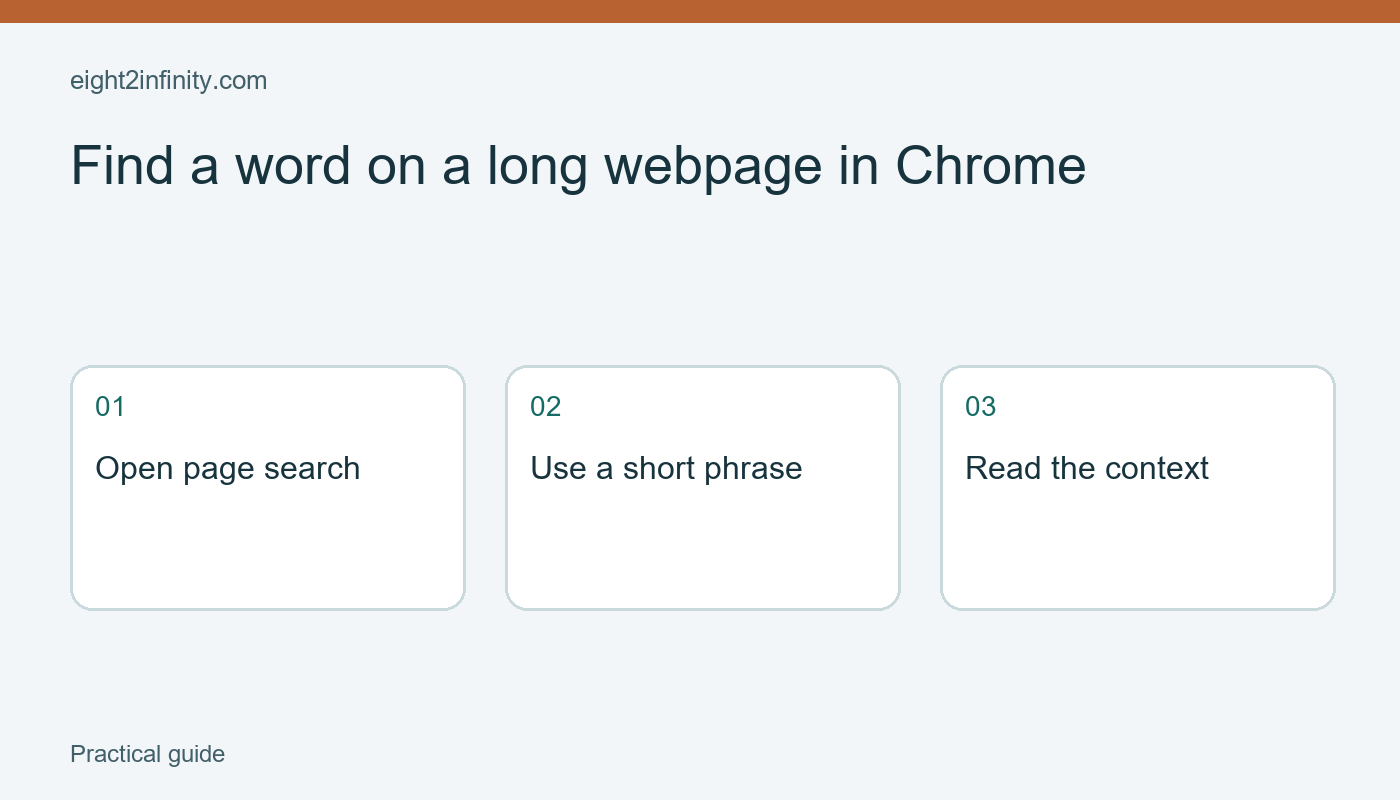
Use Chrome's Find control to locate a word or phrase within the webpage you already have open. On Windows, Ctrl+F opens the page-search box; on Mac, use Command+F. Enter a short distinctive term, move through the matches, and read the surrounding text before acting on it. This is useful for a long public guide, but it is different from searching the entire web or searching every page of a website.
Start with a specific question
Imagine that you are reading a long public museum visitor guide and want to know whether it mentions lockers. Open the actual guide page before starting. Write your question in ordinary language: Where can visitors leave a small bag? The word you search for may not exactly match the page's wording, so separating the question from the first search term helps. You are looking for a useful passage, not merely trying to make the browser display a match count.
Use a public page for practice rather than a private document or an unsaved form. Scroll briefly to understand its structure. It may contain a short introduction, several expandable sections, and links to separate pages. Notice whether you are reading the whole guide or only a summary. That context matters when a word search returns no results. A page-search box cannot prove that the organization has never discussed the subject anywhere else on its website.
Open Find and inspect a match
Press Ctrl+F on Windows or Command+F on Mac, then type lockers. Google also documents opening Find through Chrome's menu under Find and edit. Chrome highlights matching text on the current page and provides controls for moving between occurrences. Read the sentence around the highlighted word. A navigation link called Lockers may lead elsewhere, while a sentence in the main article may answer the question directly. The highlight alone does not distinguish those roles for you.
Move to the next match if there is more than one. In the fictional guide, one passage might say Large lockers are unavailable while another mentions small lockers in a particular entrance area. Those statements require context rather than a quick yes-or-no conclusion. Read the heading above each passage and any exception that follows it. If the information will affect a real visit, verify the current official page and date before making plans based on a saved or remembered snippet.
Revise the search term thoughtfully
If lockers produces no useful result, try a related term such as bags or storage. Shorter terms can find different wording, but very broad terms can create too many matches. For example, searching bag may also match a longer word or a navigation label. Keep the original question in view and choose the next term based on likely vocabulary. Do not repeatedly enter the same unsuccessful phrase and assume the browser is failing because the answer is not obvious.
Try one fictional comparison on paper. The question is whether food is permitted in a reading room. Searching picnic might miss a rule that uses refreshments. Searching food could find both permitted areas and prohibited areas. In each case, the search term is a route to a passage rather than the final answer. This habit is useful for manuals, event pages, and help articles, where exceptions and headings often determine what a matching sentence actually means.
Recognize what page search may miss
A long website can distribute information across several linked pages. A search within one page does not automatically search the others. Text inside an image, a separate download, or content that has not loaded may also need a different approach. Expand relevant sections where appropriate and check official navigation links if the visible guide is incomplete. Avoid treating zero matches as proof that a service or rule does not exist. It may simply use another format or location.
If a link opens a PDF, you are now dealing with a document viewer rather than the original webpage. Use the viewer's search controls and inspect whether the document contains searchable text. A scanned image can behave differently from a text-based file. Likewise, dynamic pages can change while you are reading them. Keep track of which page or document contains the passage you intend to cite, and save its title and address if you need to return later.
Read before sharing an answer
Once you find the relevant section, close the Find box if it obstructs the page and read the complete paragraph. Check the page heading, any date, and nearby qualifications. If you share the answer with someone else, include the official page link and a short explanation in your own words. Avoid forwarding an isolated highlighted phrase that leaves out a restriction. Finding a word quickly is useful only when it leads to a sound understanding of the passage.
For a reader exercise, choose a long public guide and ask three questions about it. Use one exact term, one shorter term, and one synonym to investigate the questions. Record which search worked and what context changed your interpretation. Then identify one question that requires another page or direct confirmation. Can you explain why page search was insufficient in that case? That distinction turns a convenient keyboard shortcut into a more reliable everyday reading tool.