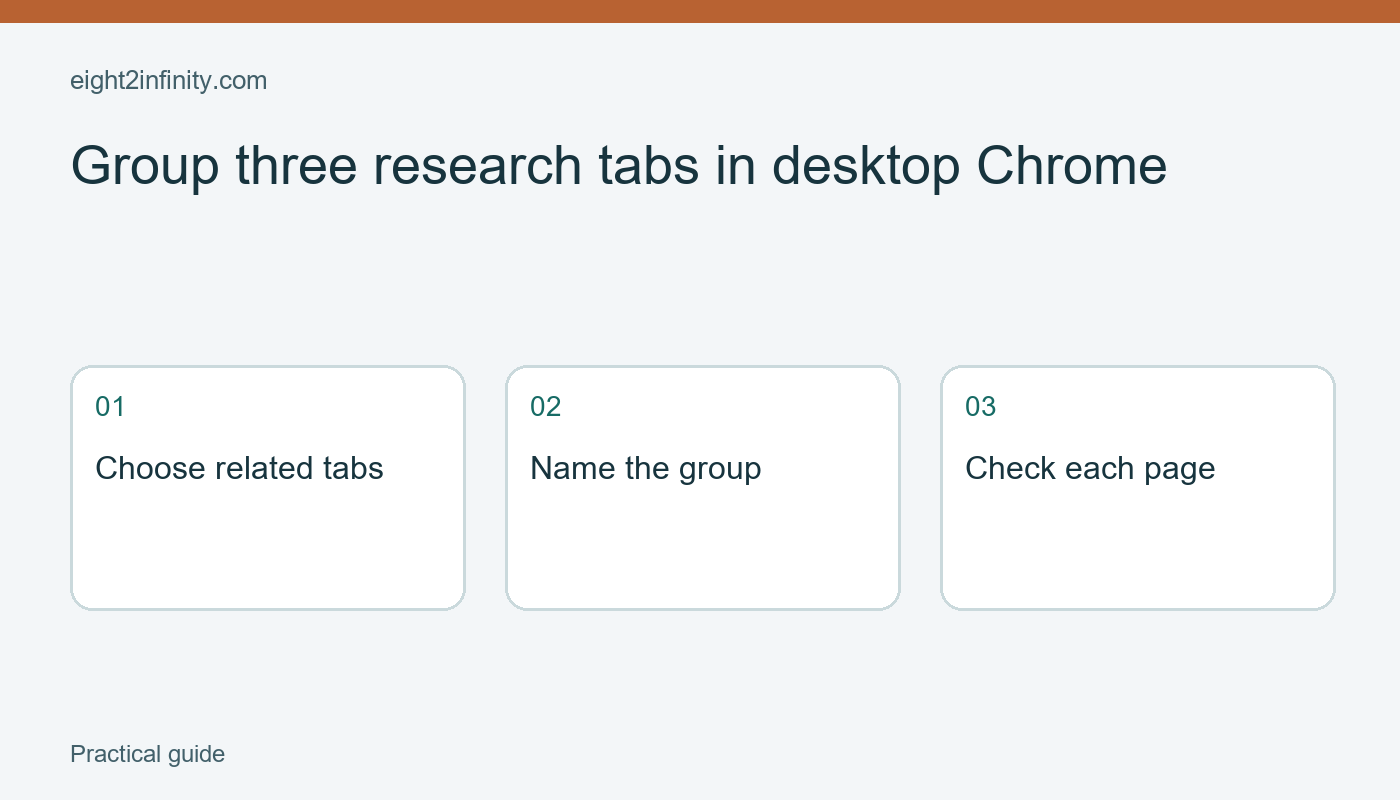
Group three research tabs in desktop Chrome
In desktop Chrome, right-click a tab and choose Add tab to group, then create a new group or select an existing one. Give the group a short task name and add the other related tabs. This keeps a few pages together while you work without changing the pages themselves.
This walkthrough uses three public reference pages for a fictional paper-craft activity. It is about organizing an active browsing session. It does not replace bookmarks, a research bibliography, or a backup of important information. Chrome's group persistence and synchronization depend on the version, profile, and account settings, so check your own environment before relying on a group later.
Choose a small working set
Open three relevant public pages in ordinary tabs: an instruction page, a materials page, and a reference diagram. Use pages you already trust and avoid private forms or unsaved work for this first exercise. Write a short note identifying each page's purpose. The note helps you decide whether a fourth page actually belongs to the same task.
Keep unrelated pages outside the group. If the activity concerns paper models, your email and a weather forecast probably do not belong in that collection. A group should answer a practical question such as Which pages am I using for this activity? Grouping every open tab together merely moves the clutter into a colored label.
Check that you are using the intended Chrome profile. Profiles can have different account settings, history, extensions, and groups. On a shared or managed computer, follow the organization's rules. A visible group name is also a label other people may see on your screen, so keep it free of private details.
Create and name the group
Right-click the first reference tab in the desktop tab strip. Choose Add tab to group and create a new group. Enter a descriptive name such as Paper model references. Choose a color if it helps you distinguish the group, but make the name meaningful without depending on color alone.
Add the second and third tabs through the same context menu, selecting the existing group. Alternatively, current desktop versions may allow dragging tabs into a group. For the first attempt, the menu makes the destination explicit. After each move, inspect the tab strip and confirm that you moved the intended page.
Click each grouped tab and check its address and content. Similar page titles can conceal different destinations or duplicate pages. If you added the wrong tab, right-click it and use Remove from group. Removing a tab from a group is different from closing the page; inspect the available command before selecting it.
Collapse the group while doing another task
Click the group label to collapse or expand the grouped tabs in the desktop interface. This can reduce the visual space occupied by the collection while preserving access during the session. Expand it again and confirm that the three expected pages are present. Do not assume that a collapsed group means its pages are closed or no longer active.
If a page contains ongoing work, save that work through the site's own controls. A group is a browser organization feature, not a document-saving command. It does not submit a form, preserve an unpublished draft reliably, or create an offline copy of a reference. Treat those requirements separately before closing or restarting the browser.
Name the group for the task rather than for a vague time period. Paper model references is easier to interpret than Today when you return several days later. If you finish the activity, decide which sources deserve a durable bookmark or citation before clearing the temporary working set.
Understand profile and sync behavior
Google documents that tab-group changes can be saved and synced when the relevant history and tab synchronization settings are enabled. That does not mean every group appears everywhere under every account. Different devices, signed-out sessions, managed policies, and browser versions can produce different experiences.
Avoid deleting a group casually when you depend on it elsewhere. Current Chrome guidance warns that deleting a synced group can remove it on other devices using the same account. Read the command and any confirmation carefully. Closing a working view, ungrouping tabs, and deleting a saved group can have different effects.
If you need durable research records, write down the page titles, addresses, and your own notes in a document you control. Tab groups can help you work through the sources, but they do not establish whether the information is accurate or whether the pages will remain available. Verify claims from the original sources before using them in a project.
Troubleshoot a missing option
If the menu differs, confirm that you are in desktop Chrome rather than a mobile browser or another Chromium-based application. Review the current official help and your installed version. An organization may control features on a managed device. Do not install an unrelated extension just to imitate a command you expected to find.
For a reader exercise, group three pages for one small task, name the group, collapse it, and return to it after opening an unrelated tab. Can you find the correct source without reading every tab title? Remove one page from the group and explain what happened to that page. Save any information you actually need before ending the practice session.